
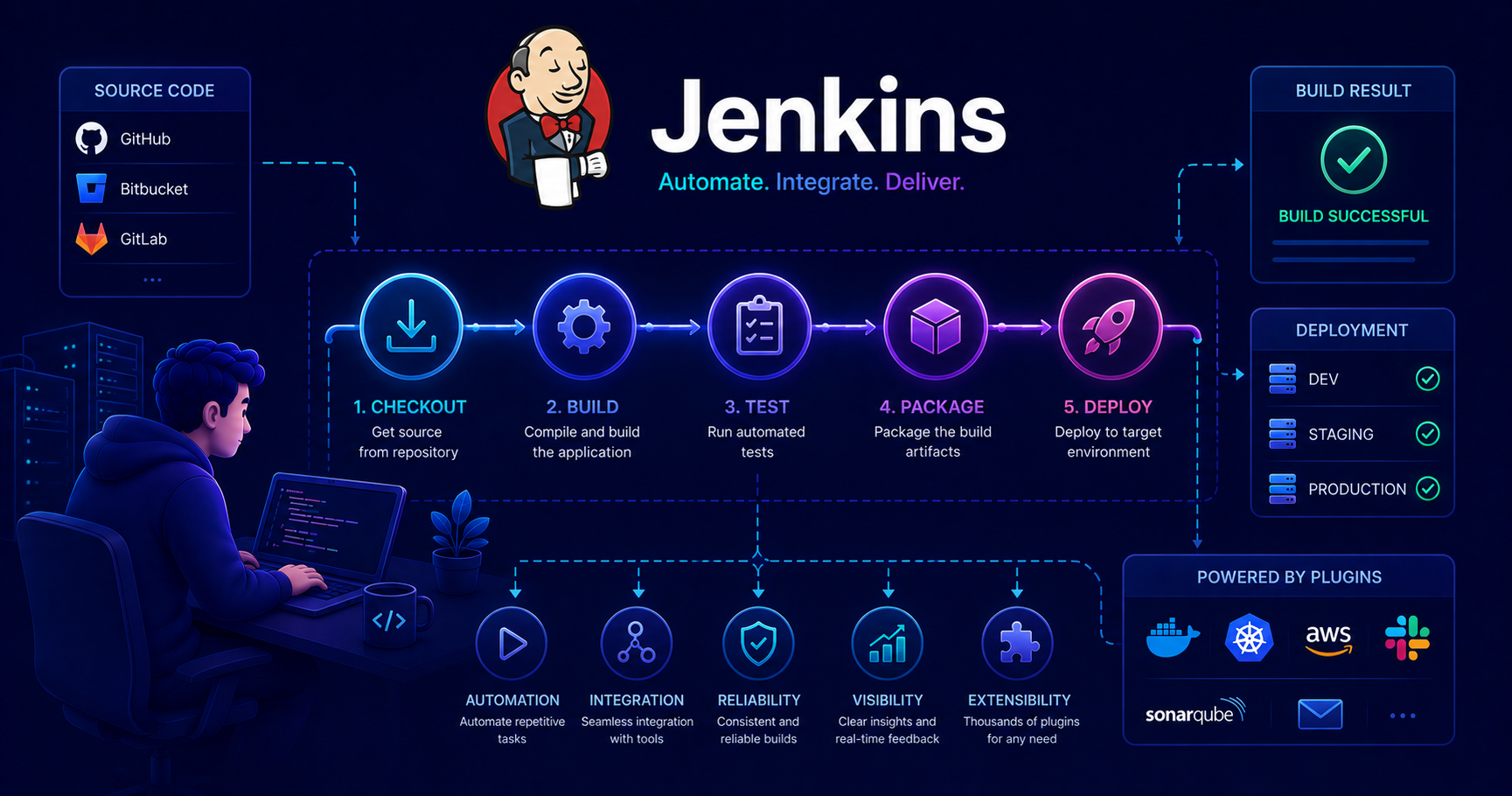
This post introduces Jenkins and CI/CD automation. If you need a refresher on DevOps principles, check out our post on Development Methodologies first! Also, familiarity with GIT version control will be helpful.
What Is Jenkins and Why CI/CD Matters
Imagine you’re working on a team project. Every time someone pushes code, you manually:
- Pull the latest changes
- Build the application
- Run all tests
- Deploy to a test environment
- Notify the team of results
This takes time and is error-prone. What if you forget to run tests? What if the build works on your machine but fails on the server?
Jenkins is an open-source automation server that solves this problem by implementing Continuous Integration and Continuous Delivery (CI/CD). It automatically builds, tests, and deploys your code whenever changes are pushed to your repository.
What Is CI/CD?
Continuous Integration (CI)
automatically integrate and test code changes.
Continuous Integration is the practice of frequently merging code changes into a shared repository. Each merge triggers an automated build and test process, catching issues early.
Benefits:
- Detect bugs early when they’re easier to fix
- Reduce integration problems
- Always have a working build
- Faster feedback for developers
Continuous Delivery (CD)
automatically prepare code for deployment.
Continuous Delivery extends CI by automatically deploying every successful build to a testing or staging environment. Code is always in a deployable state.
Continuous Deployment goes one step further by automatically deploying to production after passing all tests.
Benefits:
- Faster time to market
- Reduced deployment risk
- Consistent deployment process
- Quick rollback capabilities
The CI/CD Pipeline Flow
Here’s how Jenkins orchestrates the entire process:
flowchart LR
    A[Developer<br/>Pushes Code] --> B[GIT Repository]
    B --> C{Jenkins<br/>Detects Change}
    C --> D[Checkout Code]
    D --> E[Build Application]
    E --> F[Run Unit Tests]
    F --> G{Tests Pass?}
    G -->|Yes| H[Run Integration Tests]
    G -->|No| I[Notify Team<br/>Build Failed]
    H --> J{Tests Pass?}
    J -->|Yes| K[Deploy to Staging]
    J -->|No| I
    K --> L[Run Acceptance Tests]
    L --> M{Tests Pass?}
    M -->|Yes| N[Ready for Production]
    M -->|No| I

    style A fill:#e1f5ff
    style B fill:#ffe1e1
    style C fill:#fff4e1
    style N fill:#e1ffe1
    style I fill:#ffe1e1
Pro Tip: A well-designed CI/CD pipeline gives you confidence to deploy multiple times per day!
Core Jenkins Concepts
Before setting up pipelines, let’s understand Jenkins’ key building blocks.
Jobs and Builds
A Job (also called a “project”) is a task Jenkins executes. It contains instructions for what to build and how to build it.
A Build is a single execution of a job. Each time Jenkins runs your job, it creates a new build with a unique number.
flowchart TB
    subgraph Job["Jenkins Job: MyApp-Build"]
        direction TB
        B1[Build #1<br/>Success]
        B2[Build #2<br/>Failed]
        B3[Build #3<br/>Success]
        B4[Build #4<br/>Success]
    end

    style B1 fill:#e1ffe1
    style B2 fill:#ffe1e1
    style B3 fill:#e1ffe1
    style B4 fill:#e1ffe1
Pipelines
A Pipeline is a suite of automated processes that take code from version control to production. In Jenkins, pipelines are defined using code (Pipeline as Code), making them version-controlled and repeatable.
Why Pipelines?
- Versioned: Pipeline definitions are stored in your repository
- Reviewable: Changes go through code review
- Reusable: Share common patterns across projects
- Visualized: See the entire flow at a glance
Agents and Nodes
An Agent is the execution environment where Jenkins runs your pipeline. Think of it as a machine (physical or virtual) that does the actual work.
A Node is any machine configured as part of the Jenkins environment.
flowchart TB
    subgraph Jenkins["Jenkins Controller"]
        M[Master Node<br/>Coordinates Work]
    end

    subgraph Agents["Build Agents"]
        direction LR
        A1[Agent 1<br/>Linux]
        A2[Agent 2<br/>Windows]
        A3[Agent 3<br/>macOS]
    end

    M -->|Assigns Jobs| A1
    M -->|Assigns Jobs| A2
    M -->|Assigns Jobs| A3
Master vs. Agent Architecture
distributing work across multiple machines.
Master Node:
- Manages the Jenkins instance
- Schedules builds
- Monitors agents
- Serves the web UI
Agent Nodes:
- Execute the actual builds
- Can have different operating systems
- Can have different tools installed
- Can be added/removed dynamically
This separation allows you to:
- Run builds on different platforms simultaneously
- Scale build capacity horizontally
- Isolate build environments
Workspaces
A Workspace is a directory on an agent where Jenkins checks out your code and performs the build. Each job gets its own workspace to avoid conflicts.
Setting Up Your First Jenkins Pipeline
Let’s build a simple Java application pipeline from scratch.
Prerequisites
Before starting, ensure you have:
- Jenkins installed and running (accessible at
http://localhost:8080) - A GIT repository with your code
- Java and Maven installed on your Jenkins agent
Installation Tip: The easiest way to try Jenkins locally is using Docker:
docker run -p 8080:8080 jenkins/jenkins:lts
Step 1: Create a New Pipeline Job
- Click “New Item” in Jenkins
- Enter a name:
my-app-pipeline - Select “Pipeline”
- Click OK
Step 2: Configure GIT Repository
In the job configuration:
- Scroll to the Pipeline section
- Under Definition, select “Pipeline script from SCM”
- Choose SCM: Git
- Enter your Repository URL:
https://github.com/username/my-app.git - Specify Branch:
*/main - Script Path:
Jenkinsfile(the default)
Step 3: Create a Jenkinsfile
In the root of your repository, create a file named Jenkinsfile:
1
2
3
4
5
6
7
8
9
10
11
12
13
14
15
16
17
18
19
20
21
22
23
24
25
26
27
28
29
30
31
32
33
34
35
36
37
38
39
40
41
42
43
// Declarative Pipeline
pipeline {
    agent any

    stages {
        stage('Checkout') {
            steps {
                echo 'Checking out code from GIT...'
                checkout scm
            }
        }

        stage('Build') {
            steps {
                echo 'Building the application...'
                sh 'mvn clean compile'
            }
        }

        stage('Test') {
            steps {
                echo 'Running tests...'
                sh 'mvn test'
            }
        }

        stage('Package') {
            steps {
                echo 'Packaging application...'
                sh 'mvn package'
            }
        }
    }

    post {
        success {
            echo 'Pipeline completed successfully!'
        }
        failure {
            echo 'Pipeline failed!'
        }
    }
}
Step 4: Trigger the Pipeline
- Commit and push the
Jenkinsfileto your repository - In Jenkins, click “Build Now”
- Watch the pipeline execute in real-time!
You’ll see something like this:
flowchart LR
    A[Checkout] --> B[Build]
    B --> C[Test]
    C --> D[Package]

    style A fill:#e1f5ff
    style B fill:#e1f5ff
    style C fill:#e1f5ff
    style D fill:#e1ffe1
Success! You’ve just created your first CI/CD pipeline! 🎉
Understanding Jenkinsfile Syntax
Jenkins supports two pipeline syntaxes: Declarative and Scripted. For beginners, Declarative is recommended.
Declarative Pipeline Structure
1
2
3
4
5
6
7
8
9
10
11
12
13
14
15
16
17
18
19
20
21
22
23
24
25
26
27
28
29
30
31
32
33
34
35
36
37
38
pipeline {
    // Where to execute
    agent any

    // Environment variables
    environment {
        APP_NAME = 'my-application'
        VERSION = '1.0.0'
    }

    // Build parameters
    parameters {
        string(name: 'BRANCH', defaultValue: 'main', description: 'Branch to build')
        choice(name: 'ENVIRONMENT', choices: ['dev', 'staging', 'prod'], description: 'Target environment')
    }

    // The stages
    stages {
        stage('Stage Name') {
            steps {
                // Commands to execute
            }
        }
    }

    // Post-build actions
    post {
        always {
            // Always run
        }
        success {
            // Run only if successful
        }
        failure {
            // Run only if failed
        }
    }
}
Key Components Explained
| Component | Purpose | Example |
|---|---|---|
agent | Where to run the pipeline | agent any or agent { label 'linux' } |
environment | Define environment variables | VERSION = '1.0.0' |
parameters | User inputs for builds | string(name: 'BRANCH', ...) |
stages | Major phases of the pipeline | stage('Build') { ... } |
steps | Individual commands | sh 'mvn test' |
post | Actions after pipeline completes | success { ... } |
Common Step Commands
1
2
3
4
5
6
7
8
9
10
11
12
13
14
15
16
17
18
19
20
21
22
23
24
25
26
stage('Examples') {
    steps {
        // Execute shell command (Linux/Mac)
        sh 'echo "Hello from shell"'

        // Execute batch command (Windows)
        bat 'echo Hello from batch'

        // Print message to console
        echo 'This is a message'

        // Checkout code from GIT
        checkout scm

        // Set environment variable
        script {
            env.BUILD_TIME = sh(returnStdout: true, script: 'date').trim()
        }

        // Archive artifacts
        archiveArtifacts artifacts: 'target/*.jar', fingerprint: true

        // Publish test results
        junit 'target/surefire-reports/*.xml'
    }
}
Scripted Pipeline (Advanced)
For more complex scenarios, you can use Scripted Pipeline with Groovy:
1
2
3
4
5
6
7
8
9
10
11
12
13
14
15
16
17
18
19
20
21
22
23
24
25
26
27
28
29
30
31
32
node {
    try {
        stage('Checkout') {
            checkout scm
        }

        stage('Build') {
            if (env.BRANCH_NAME == 'main') {
                sh 'mvn clean install'
            } else {
                sh 'mvn clean compile'
            }
        }

        stage('Test') {
            parallel(
                'Unit Tests': {
                    sh 'mvn test'
                },
                'Integration Tests': {
                    sh 'mvn verify'
                }
            )
        }
    } catch (Exception e) {
        currentBuild.result = 'FAILURE'
        throw e
    } finally {
        // Cleanup
        deleteDir()
    }
}
Note: Scripted pipelines offer more flexibility but are harder to read. Start with Declarative and only switch when you need advanced control flow.
Integration with Version Control
Jenkins works seamlessly with GIT to trigger builds automatically.
Webhook-Based Triggers
Instead of polling your repository, configure a webhook to notify Jenkins immediately when code is pushed.
Setup Steps:
- In Jenkins, install the “GitHub Integration” plugin
- In your job configuration, enable “GitHub hook trigger for GITScm polling”
- In GitHub/GitLab, add a webhook pointing to:
https://your-jenkins.com/github-webhook/
sequenceDiagram
    participant Dev as Developer
    participant Git as GIT Repository
    participant Hook as Webhook
    participant Jenkins as Jenkins Server
    participant Agent as Build Agent

    Dev->>Git: git push
    Git->>Hook: Trigger webhook
    Hook->>Jenkins: POST /github-webhook/
    Jenkins->>Agent: Start build
    Agent->>Git: Checkout code
    Agent->>Agent: Build & Test
    Agent->>Jenkins: Report status
    Jenkins->>Git: Update commit status
Branch-Based Pipelines
Use the Multibranch Pipeline job type to automatically create pipelines for each branch:
1
2
3
4
5
6
7
8
9
10
11
12
13
14
15
16
17
18
19
20
21
22
23
24
25
26
27
28
29
30
31
32
pipeline {
    agent any

    stages {
        stage('Build') {
            steps {
                echo "Building branch: ${env.BRANCH_NAME}"
                sh 'mvn clean package'
            }
        }

        stage('Deploy to Dev') {
            when {
                branch 'develop'
            }
            steps {
                echo 'Deploying to development environment'
                // Deployment commands
            }
        }

        stage('Deploy to Production') {
            when {
                branch 'main'
            }
            steps {
                echo 'Deploying to production environment'
                // Production deployment
            }
        }
    }
}
Pull Request Validation
Automatically test pull requests before merging:
1
2
3
4
5
6
7
8
9
10
11
12
13
14
15
16
17
18
19
20
21
22
23
24
25
pipeline {
    agent any

    stages {
        stage('PR Check') {
            when {
                changeRequest()
            }
            steps {
                echo "Testing PR-${env.CHANGE_ID}: ${env.CHANGE_TITLE}"
                sh 'mvn clean verify'
            }
        }
    }

    post {
        success {
            // Post success status to PR
            publishChecks name: 'Build', status: 'COMPLETED', conclusion: 'SUCCESS'
        }
        failure {
            publishChecks name: 'Build', status: 'COMPLETED', conclusion: 'FAILURE'
        }
    }
}
Common Plugins and Their Uses
Jenkins has over 1,800 plugins that extend its functionality. Here are the essential ones:
Must-Have Plugins
| Plugin | Purpose | Use Case |
|---|---|---|
| Git | GIT integration | Clone repositories, trigger on changes |
| Pipeline | Pipeline as Code support | Define pipelines in Jenkinsfile |
| Blue Ocean | Modern UI for pipelines | Better visualization and easier debugging |
| Docker | Docker integration | Build and push Docker images |
| Maven Integration | Maven build tool | Simplified Maven project configuration |
| JUnit | Test result publishing | Display test results and trends |
| Email Extension | Email notifications | Notify team of build status |
Plugin Installation
- Go to Manage Jenkins → Manage Plugins
- Click the Available tab
- Search for the plugin
- Check the box and click Install without restart
Advanced Plugins for Growing Teams
enhance your pipeline capabilities.
Code Quality:
- SonarQube Scanner: Analyze code quality and security
- Checkstyle: Check Java code style
- Jacoco: Code coverage reports
Deployment:
- Deploy to Container: Deploy to Tomcat, JBoss, etc.
- Kubernetes: Deploy to Kubernetes clusters
- AWS Steps: Interact with AWS services
Notifications:
- Slack Notification: Send build notifications to Slack
- Microsoft Teams: Integrate with Teams
Security:
- Credentials Binding: Securely inject credentials
- Role-based Authorization: Fine-grained access control
Using Plugins in Pipelines
Example with Docker and SonarQube:
1
2
3
4
5
6
7
8
9
10
11
12
13
14
15
16
17
18
19
20
21
22
23
24
25
26
27
28
29
30
31
32
33
34
35
36
37
38
39
40
41
42
43
44
pipeline {
    agent any

    stages {
        stage('Checkout') {
            steps {
                checkout scm
            }
        }

        stage('Build') {
            steps {
                sh 'mvn clean package'
            }
        }

        stage('SonarQube Analysis') {
            steps {
                withSonarQubeEnv('SonarQube') {
                    sh 'mvn sonar:sonar'
                }
            }
        }

        stage('Build Docker Image') {
            steps {
                script {
                    docker.build("my-app:${env.BUILD_NUMBER}")
                }
            }
        }

        stage('Push to Registry') {
            steps {
                script {
                    docker.withRegistry('https://registry.example.com', 'docker-credentials') {
                        docker.image("my-app:${env.BUILD_NUMBER}").push()
                        docker.image("my-app:${env.BUILD_NUMBER}").push('latest')
                    }
                }
            }
        }
    }
}
Best Practices for CI/CD Pipelines
Follow these guidelines to create maintainable, reliable pipelines.
1. Keep Pipelines Fast
⚡ Goal: Provide feedback within 10 minutes
1
2
3
4
5
6
7
8
9
10
11
12
13
14
15
16
17
18
19
20
21
22
23
24
25
26
27
28
29
30
31
32
33
pipeline {
    agent any

    stages {
        stage('Quick Checks') {
            parallel {
                stage('Compile') {
                    steps {
                        sh 'mvn compile'
                    }
                }
                stage('Style Check') {
                    steps {
                        sh 'mvn checkstyle:check'
                    }
                }
            }
        }

        stage('Unit Tests') {
            steps {
                sh 'mvn test'
            }
        }

        // Integration tests run only if unit tests pass
        stage('Integration Tests') {
            steps {
                sh 'mvn verify'
            }
        }
    }
}
Pro Tip: Run fast tests first (compilation, unit tests) and slower tests later (integration, E2E). This gives developers quick feedback!
2. Make Pipelines Idempotent
Running the same pipeline twice should produce the same result:
1
2
3
4
5
6
7
8
stage('Clean Environment') {
    steps {
        // Always start fresh
        sh 'mvn clean'
        sh 'docker-compose down || true'
        sh 'rm -rf target/'
    }
}
3. Use Shared Libraries
For common patterns, create a shared library:
1
2
3
4
5
6
7
8
9
10
11
12
13
14
15
16
17
18
19
20
21
22
23
24
25
// In shared library: vars/standardPipeline.groovy
def call(Map config) {
    pipeline {
        agent any
        stages {
            stage('Build') {
                steps {
                    sh "${config.buildCommand}"
                }
            }
            stage('Test') {
                steps {
                    sh "${config.testCommand}"
                }
            }
        }
    }
}

// In Jenkinsfile:
@Library('my-shared-library') _
standardPipeline(
    buildCommand: 'mvn package',
    testCommand: 'mvn test'
)
4. Store Credentials Securely
Never hardcode passwords or API keys:
1
2
3
4
5
6
7
8
9
10
11
12
13
14
15
16
17
18
19
20
21
pipeline {
    agent any

    environment {
        // Reference Jenkins credentials
        DATABASE_PASSWORD = credentials('db-password')
        AWS_CREDENTIALS = credentials('aws-credentials')
    }

    stages {
        stage('Deploy') {
            steps {
                // Use credentials safely
                sh '''
                    echo "Deploying with secured credentials"
                    # Credentials are available as environment variables
                '''
            }
        }
    }
}
Warning: Jenkins masks credentials in console output, but be careful with debugging commands like
printenv!
5. Implement Proper Error Handling
1
2
3
4
5
6
7
8
9
10
11
12
13
14
15
16
17
18
19
20
21
22
23
24
25
26
27
28
29
30
31
pipeline {
    agent any

    stages {
        stage('Deploy') {
            steps {
                script {
                    try {
                        sh 'kubectl apply -f deployment.yaml'
                    } catch (Exception e) {
                        echo "Deployment failed: ${e.message}"
                        // Rollback
                        sh 'kubectl rollout undo deployment/my-app'
                        error("Deployment failed, rolled back")
                    }
                }
            }
        }
    }

    post {
        failure {
            // Notify team
            emailext(
                subject: "Pipeline Failed: ${env.JOB_NAME} - ${env.BUILD_NUMBER}",
                body: "Check console output at ${env.BUILD_URL}",
                to: 'team@example.com'
            )
        }
    }
}
6. Use Declarative Syntax When Possible
Declarative pipelines are easier to understand and maintain:
| Aspect | Declarative | Scripted |
|---|---|---|
| Readability | ✅ Excellent | ⚠️ Requires Groovy knowledge |
| Validation | ✅ Early syntax checking | ❌ Runtime errors |
| Structure | ✅ Enforced sections | ⚠️ Free-form |
| Best For | Most use cases | Complex logic |
7. Document Your Pipeline
1
2
3
4
5
6
7
8
9
10
11
12
13
14
15
16
17
18
19
20
pipeline {
    agent any

    // Document what this pipeline does
    options {
        buildDiscarder(logRotator(numToKeepStr: '10'))
        disableConcurrentBuilds()
        timeout(time: 1, unit: 'HOURS')
    }

    stages {
        stage('Build') {
            // Explain why this stage exists
            steps {
                echo 'Building application: compiles Java code and packages JAR'
                sh 'mvn clean package'
            }
        }
    }
}
Troubleshooting Common Issues
Let’s address problems you’ll likely encounter as a Jenkins beginner.
Issue 1: Build Fails with “mvn: command not found”
Problem: Maven is not available on the build agent.
Solution 1: Configure tool locations in Jenkins:
- Go to Manage Jenkins → Global Tool Configuration
- Under Maven, click Add Maven
- Name it (e.g., “Maven 3.8”)
- Check Install automatically
Update your pipeline:
1
2
3
4
5
6
7
8
9
10
11
12
13
14
15
pipeline {
    agent any

    tools {
        maven 'Maven 3.8'  // Use the configured Maven
    }

    stages {
        stage('Build') {
            steps {
                sh 'mvn clean package'
            }
        }
    }
}
Solution 2: Use Docker agents with tools pre-installed:
1
2
3
4
5
6
7
8
9
10
11
12
13
14
15
pipeline {
    agent {
        docker {
            image 'maven:3.8-openjdk-11'
        }
    }

    stages {
        stage('Build') {
            steps {
                sh 'mvn clean package'
            }
        }
    }
}
Issue 2: Workspace Permission Denied
Problem: Jenkins can’t write to the workspace directory.
Solution:
1
2
3
4
5
6
7
8
9
10
11
12
13
14
15
16
17
pipeline {
    agent any

    stages {
        stage('Fix Permissions') {
            steps {
                sh 'chmod -R 755 .'
            }
        }

        stage('Build') {
            steps {
                sh 'mvn clean package'
            }
        }
    }
}
For Docker agents, run as the correct user:
1
2
3
4
5
6
agent {
    docker {
        image 'maven:3.8-openjdk-11'
        args '-u root:root'  // Run as root
    }
}
Issue 3: Tests Pass Locally But Fail in Jenkins
Problem: Environment differences between local machine and Jenkins agent.
Debugging Steps:
1
2
3
4
5
6
7
8
9
10
11
12
13
stage('Debug Environment') {
    steps {
        sh 'echo "Java version:"'
        sh 'java -version'
        sh 'echo "Maven version:"'
        sh 'mvn -version'
        sh 'echo "Environment variables:"'
        sh 'printenv | sort'
        sh 'echo "Working directory:"'
        sh 'pwd'
        sh 'ls -la'
    }
}
Common Causes:
- Different Java versions
- Missing environment variables
- Different file paths (Windows vs. Linux)
- Timezone issues
- Tests depending on external services
Issue 4: Pipeline Doesn’t Trigger on GIT Push
Problem: Webhook not configured or not working.
Solution Checklist:
- ✅ Webhook configured in GIT repository
- ✅ Jenkins URL is accessible from GIT server
- ✅ Correct webhook URL:
https://jenkins.example.com/github-webhook/ - ✅ Jenkins job has “GitHub hook trigger” enabled
- ✅ Recent webhook deliveries show success (check in GIT settings)
Temporary workaround: Enable polling (not recommended for production):
1
2
3
4
5
6
7
8
9
10
11
12
pipeline {
    agent any

    triggers {
        // Poll every 5 minutes: H/5 * * * *
        pollSCM('H/5 * * * *')
    }

    stages {
        // ... stages
    }
}
Issue 5: Build Takes Too Long
Problem: Pipeline runs for 30+ minutes.
Optimization Strategies:
1
2
3
4
5
6
7
8
9
10
11
12
13
14
15
16
17
18
19
20
21
22
23
24
25
26
27
28
29
30
31
32
33
34
35
36
pipeline {
    agent any

    stages {
        // 1. Use parallel stages
        stage('Parallel Tests') {
            parallel {
                stage('Unit Tests') {
                    steps {
                        sh 'mvn test'
                    }
                }
                stage('Integration Tests') {
                    steps {
                        sh 'mvn verify -DskipUnitTests'
                    }
                }
                stage('Code Quality') {
                    steps {
                        sh 'mvn checkstyle:check'
                    }
                }
            }
        }

        // 2. Skip unnecessary steps
        stage('Full Build') {
            when {
                branch 'main'  // Only on main branch
            }
            steps {
                sh 'mvn clean install'
            }
        }
    }
}
Additional Tips:
- Use incremental builds (
mvn compileinstead ofmvn clean compile) - Cache dependencies (Maven local repository)
- Split tests into separate jobs
- Use faster agents with more CPU/RAM
Issue 6: Credentials Not Working
Problem: Jenkins can’t authenticate with external services.
Solution: Properly configure and use credentials:
- Add credentials: Manage Jenkins → Manage Credentials
- Choose correct type:
- Username/Password
- Secret text
- SSH keys
- Certificate
Use in pipeline:
1
2
3
4
5
6
7
8
9
10
11
12
13
14
15
16
17
18
19
20
21
22
23
24
25
26
27
28
pipeline {
    agent any

    stages {
        stage('Use Credentials') {
            steps {
                // Method 1: Environment variable
                withCredentials([usernamePassword(
                    credentialsId: 'github-credentials',
                    usernameVariable: 'GIT_USER',
                    passwordVariable: 'GIT_PASSWORD'
                )]) {
                    sh '''
                        git clone https://${GIT_USER}:${GIT_PASSWORD}@github.com/user/repo.git
                    '''
                }

                // Method 2: String credential
                withCredentials([string(
                    credentialsId: 'api-token',
                    variable: 'API_TOKEN'
                )]) {
                    sh 'curl -H "Authorization: Bearer ${API_TOKEN}" https://api.example.com'
                }
            }
        }
    }
}
Advanced Debugging Techniques
when standard troubleshooting doesn’t help.
Enable Debug Logging:
Add to the beginning of your Jenkinsfile:
1
2
3
4
5
6
7
8
9
10
11
12
13
14
15
16
17
18
19
20
21
22
23
24
25
26
27
28
29
30
31
32
33
pipeline {
    agent any

    options {
        timestamps()
        timeout(time: 1, unit: 'HOURS')
    }

    stages {
        stage('Debug') {
            steps {
                script {
                    echo "========== Build Information =========="
                    echo "Job Name: ${env.JOB_NAME}"
                    echo "Build Number: ${env.BUILD_NUMBER}"
                    echo "Build ID: ${env.BUILD_ID}"
                    echo "Jenkins URL: ${env.JENKINS_URL}"
                    echo "Workspace: ${env.WORKSPACE}"
                    echo "Node Name: ${env.NODE_NAME}"

                    echo "========== GIT Information =========="
                    echo "Branch: ${env.GIT_BRANCH}"
                    echo "Commit: ${env.GIT_COMMIT}"

                    echo "========== System Information =========="
                    sh 'uname -a'
                    sh 'df -h'
                    sh 'free -m || true'
                }
            }
        }
    }
}
Replay a Build:
- Go to a previous build
- Click Replay
- Modify the pipeline script
- Run without committing changes
Use the Blue Ocean UI:
- Better visualization of pipeline steps
- Easier to identify which step failed
- More detailed logs per step
Real-World Pipeline Example
Let’s put everything together with a production-ready pipeline for a Java Spring Boot application:
1
2
3
4
5
6
7
8
9
10
11
12
13
14
15
16
17
18
19
20
21
22
23
24
25
26
27
28
29
30
31
32
33
34
35
36
37
38
39
40
41
42
43
44
45
46
47
48
49
50
51
52
53
54
55
56
57
58
59
60
61
62
63
64
65
66
67
68
69
70
71
72
73
74
75
76
77
78
79
80
81
82
83
84
85
86
87
88
89
90
91
92
93
94
95
96
97
98
99
100
101
102
103
104
105
106
107
108
109
110
111
112
113
114
115
116
117
118
119
120
121
122
123
124
125
126
127
128
129
130
131
132
133
134
135
136
137
138
139
140
141
142
143
144
145
146
147
148
149
150
151
152
153
154
155
156
157
158
159
160
161
162
163
164
165
166
167
168
169
170
171
172
173
174
175
176
177
178
179
180
181
182
183
184
185
186
187
188
189
190
191
192
193
194
195
196
197
198
199
200
201
202
203
204
205
206
207
208
209
210
211
212
213
214
pipeline {
    agent any

    // Tools configuration
    tools {
        maven 'Maven 3.8'
        jdk 'JDK 11'
    }

    // Environment variables
    environment {
        APP_NAME = 'my-spring-app'
        DOCKER_REGISTRY = 'docker.io/mycompany'
        DOCKER_CREDENTIALS = credentials('docker-hub-credentials')
        SONAR_TOKEN = credentials('sonarqube-token')
    }

    // Build parameters
    parameters {
        choice(
            name: 'DEPLOY_ENV',
            choices: ['dev', 'staging', 'production'],
            description: 'Target deployment environment'
        )
        booleanParam(
            name: 'SKIP_TESTS',
            defaultValue: false,
            description: 'Skip running tests (not recommended)'
        )
    }

    // Pipeline options
    options {
        buildDiscarder(logRotator(numToKeepStr: '10'))
        disableConcurrentBuilds()
        timeout(time: 1, unit: 'HOURS')
        timestamps()
    }

    stages {
        stage('Checkout') {
            steps {
                echo "Checking out code from branch: ${env.GIT_BRANCH}"
                checkout scm
            }
        }

        stage('Build') {
            steps {
                echo 'Compiling application...'
                sh 'mvn clean compile'
            }
        }

        stage('Unit Tests') {
            when {
                expression { !params.SKIP_TESTS }
            }
            steps {
                echo 'Running unit tests...'
                sh 'mvn test'
            }
            post {
                always {
                    junit 'target/surefire-reports/*.xml'
                    jacoco(
                        execPattern: 'target/jacoco.exec',
                        classPattern: 'target/classes',
                        sourcePattern: 'src/main/java'
                    )
                }
            }
        }

        stage('Code Quality Analysis') {
            steps {
                echo 'Analyzing code quality with SonarQube...'
                withSonarQubeEnv('SonarQube') {
                    sh 'mvn sonar:sonar -Dsonar.login=${SONAR_TOKEN}'
                }
            }
        }

        stage('Quality Gate') {
            steps {
                timeout(time: 5, unit: 'MINUTES') {
                    waitForQualityGate abortPipeline: true
                }
            }
        }

        stage('Package') {
            steps {
                echo 'Packaging application...'
                sh 'mvn package -DskipTests'
                archiveArtifacts artifacts: 'target/*.jar', fingerprint: true
            }
        }

        stage('Build Docker Image') {
            steps {
                script {
                    echo "Building Docker image: ${env.APP_NAME}:${env.BUILD_NUMBER}"
                    docker.build("${env.DOCKER_REGISTRY}/${env.APP_NAME}:${env.BUILD_NUMBER}")
                    docker.build("${env.DOCKER_REGISTRY}/${env.APP_NAME}:latest")
                }
            }
        }

        stage('Push Docker Image') {
            steps {
                script {
                    echo 'Pushing Docker image to registry...'
                    docker.withRegistry('', 'docker-hub-credentials') {
                        docker.image("${env.DOCKER_REGISTRY}/${env.APP_NAME}:${env.BUILD_NUMBER}").push()
                        docker.image("${env.DOCKER_REGISTRY}/${env.APP_NAME}:latest").push()
                    }
                }
            }
        }

        stage('Deploy to Dev') {
            when {
                expression { params.DEPLOY_ENV == 'dev' || env.GIT_BRANCH == 'develop' }
            }
            steps {
                echo 'Deploying to development environment...'
                sh '''
                    kubectl config use-context dev-cluster
                    kubectl set image deployment/${APP_NAME} ${APP_NAME}=${DOCKER_REGISTRY}/${APP_NAME}:${BUILD_NUMBER}
                    kubectl rollout status deployment/${APP_NAME}
                '''
            }
        }

        stage('Integration Tests') {
            when {
                expression { params.DEPLOY_ENV == 'dev' || env.GIT_BRANCH == 'develop' }
            }
            steps {
                echo 'Running integration tests against dev environment...'
                sh 'mvn verify -DskipUnitTests'
            }
        }

        stage('Deploy to Staging') {
            when {
                expression { params.DEPLOY_ENV == 'staging' || env.GIT_BRANCH == 'main' }
            }
            steps {
                echo 'Deploying to staging environment...'
                sh '''
                    kubectl config use-context staging-cluster
                    kubectl set image deployment/${APP_NAME} ${APP_NAME}=${DOCKER_REGISTRY}/${APP_NAME}:${BUILD_NUMBER}
                    kubectl rollout status deployment/${APP_NAME}
                '''
            }
        }

        stage('Smoke Tests') {
            when {
                expression { params.DEPLOY_ENV == 'staging' }
            }
            steps {
                echo 'Running smoke tests...'
                sh 'curl -f https://staging.example.com/health || exit 1'
            }
        }

        stage('Deploy to Production') {
            when {
                expression { params.DEPLOY_ENV == 'production' }
            }
            steps {
                input message: 'Deploy to production?', ok: 'Deploy'
                echo 'Deploying to production environment...'
                sh '''
                    kubectl config use-context prod-cluster
                    kubectl set image deployment/${APP_NAME} ${APP_NAME}=${DOCKER_REGISTRY}/${APP_NAME}:${BUILD_NUMBER}
                    kubectl rollout status deployment/${APP_NAME}
                '''
            }
        }
    }

    post {
        always {
            echo 'Cleaning up workspace...'
            cleanWs()
        }

        success {
            echo 'Pipeline completed successfully!'
            slackSend(
                color: 'good',
                message: "✅ Build #${env.BUILD_NUMBER} succeeded: ${env.JOB_NAME}\n${env.BUILD_URL}"
            )
        }

        failure {
            echo 'Pipeline failed!'
            slackSend(
                color: 'danger',
                message: "❌ Build #${env.BUILD_NUMBER} failed: ${env.JOB_NAME}\n${env.BUILD_URL}"
            )
            emailext(
                subject: "Jenkins Build Failed: ${env.JOB_NAME} - ${env.BUILD_NUMBER}",
                body: "Check console output at ${env.BUILD_URL} for details.",
                to: 'team@example.com',
                attachLog: true
            )
        }
    }
}
This pipeline demonstrates:
- ✅ Multi-stage builds with dependencies
- ✅ Conditional execution based on branch and parameters
- ✅ Code quality gates
- ✅ Docker integration
- ✅ Multiple environment deployments
- ✅ Manual approval for production
- ✅ Comprehensive notifications
- ✅ Proper error handling and cleanup
Conclusion
Jenkins is a powerful automation server that enables teams to implement CI/CD practices effectively. By automating builds, tests, and deployments, you can:
- Catch bugs earlier through continuous integration
- Deploy faster with automated pipelines
- Reduce manual errors by standardizing processes
- Increase confidence with comprehensive testing
Key Takeaways
- CI/CD is essential for modern software development
- Start simple with basic pipelines and add complexity gradually
- Use Declarative syntax for better readability and maintainability
- Leverage plugins to extend Jenkins capabilities
- Follow best practices for security, speed, and reliability
- Monitor and optimize your pipelines continuously
Next Steps
Now that you understand Jenkins, consider exploring:
- Docker Containerization - Package your applications consistently
- Development Methodologies - Learn more about DevOps culture
- Unit Testing and Integration Testing - Improve your test coverage
- Kubernetes - Orchestrate containerized deployments at scale
- Infrastructure as Code - Manage infrastructure with Terraform or Ansible
Remember: A good CI/CD pipeline is like a safety net, it catches problems before they reach production. Invest time in building robust pipelines, and your team will thank you!
Happy automating! 🚀