
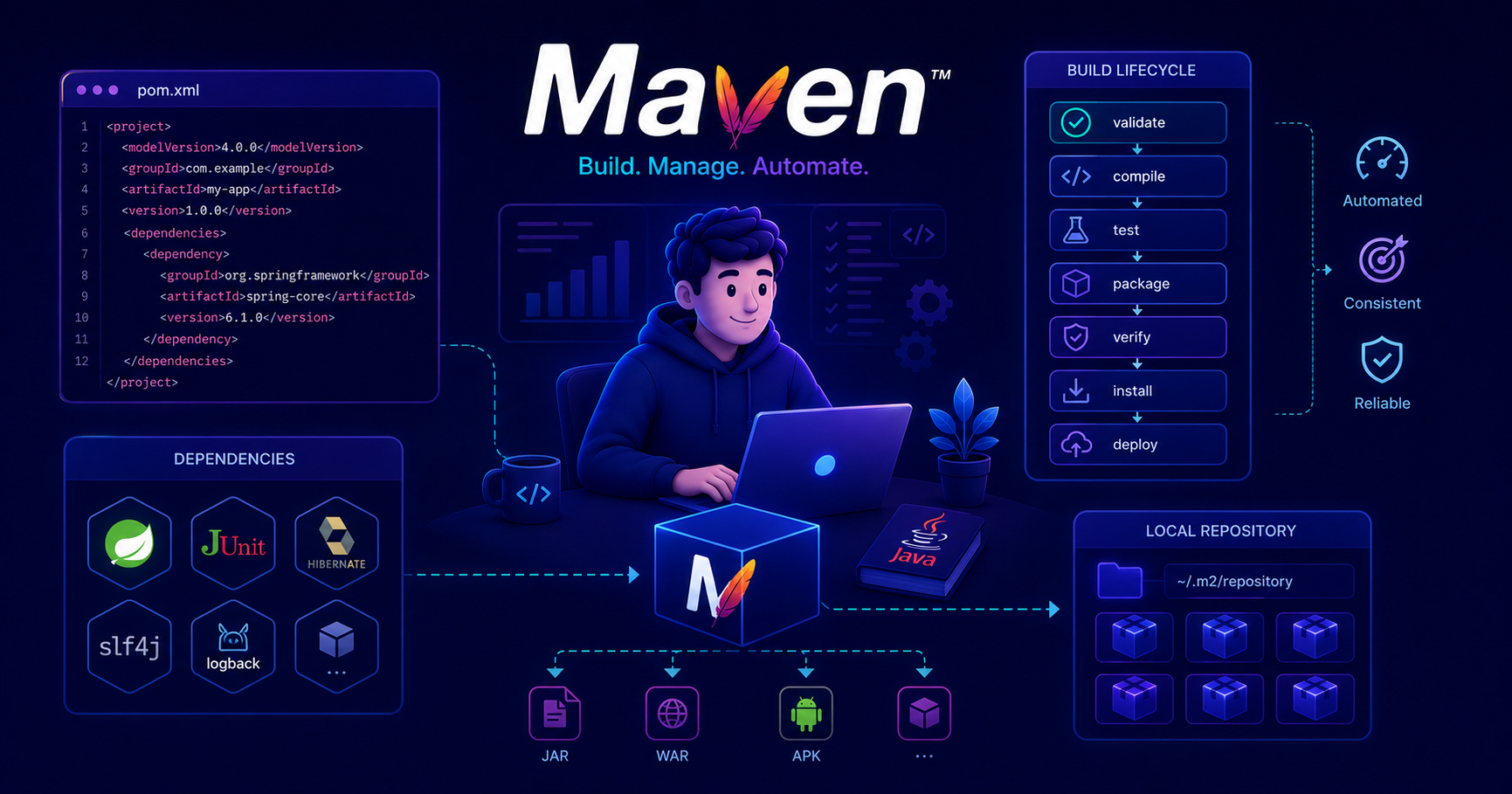
This post introduces Maven, the essential build automation tool for Java projects. If you’re new to Java, check out our post on Java Programming Language first!
What is Maven?
Imagine you’re building a Java application. You need to compile your code, download external libraries, run tests, package everything into a JAR file, and maybe deploy it to a server. Doing all this manually would be a nightmare! This is where Maven comes in.
Apache Maven is a powerful build automation and project management tool primarily used for Java projects. Think of it as your project’s personal assistant that:
- Manages dependencies - Downloads and manages all the external libraries your project needs
- Builds your project - Compiles code, runs tests, and packages applications
- Standardizes structure - Enforces a consistent project layout across all Maven projects
- Automates workflows - Executes complex build processes with simple commands
Maven has become the de facto standard for Java projects, and understanding it is essential for any Java developer.
Why Maven Matters
"When I started my first job as a Java developer, I was amazed at how Maven handled hundreds of dependencies automatically. What would have taken days of manual work happened in seconds."
Maven provides several critical benefits:
| Benefit | Description |
|---|---|
| Dependency Management | Automatically downloads libraries and their transitive dependencies |
| Standardization | Consistent project structure across teams and organizations |
| Build Automation | One command builds, tests, and packages your entire application |
| Plugin Ecosystem | Extensible architecture with thousands of available plugins |
| Repository System | Access to millions of open-source libraries via Maven Central |
Maven Fundamentals
Before diving into practical usage, let’s understand Maven’s core concepts.
Project Object Model (POM)
The heart of every Maven project is the pom.xml file - the Project Object Model. This XML file describes your project, its dependencies, build configuration, and more.
POM (Project Object Model)
Maven’s project configuration blueprint.
The POM is a declarative configuration file that tells Maven everything about your project:
- Project coordinates (groupId, artifactId, version) that uniquely identify your project
- Dependencies your project needs to compile and run
- Build plugins that extend Maven’s capabilities
- Project metadata like name, description, and developers
Think of it as your project’s birth certificate and instruction manual combined.
Maven Coordinates
Every Maven project is identified by three coordinates:
1
2
3
<groupId>com.example</groupId>
<artifactId>my-app</artifactId>
<version>1.0.0</version>
- groupId: Usually your organization’s reversed domain name (e.g.,
com.google,org.apache) - artifactId: Your project’s unique name
- version: Your project’s version number
Together, these form a unique identifier: com.example:my-app:1.0.0
Maven Repositories
Maven downloads dependencies from repositories - centralized storage locations for libraries.
flowchart LR
    subgraph Local["Local Machine"]
        Project["Maven Project"]
        LocalRepo["Local Repository ~/.m2/repository"]
    end

    subgraph Remote["Internet"]
        Central["Maven Central repo.maven.apache.org"]
        Custom["Custom/Corporate Repositories"]
    end

    Project -->|1. Check first| LocalRepo
    LocalRepo -->|2. Not found?| Central
    LocalRepo -->|2. Not found?| Custom
    Central -->|3. Download| LocalRepo
    Custom -->|3. Download| LocalRepo
    LocalRepo -->|4. Use| Project
Pro Tip: Maven caches all dependencies in your local repository (
~/.m2/repository). This means you only download each library once, even if multiple projects use it!
Maven Directory Structure
Maven enforces a standard directory layout, making it easy for developers to navigate any Maven project.
flowchart TB
    subgraph Project["my-app/"]
        POM[pom.xml<br/><i>Project configuration</i>]

        subgraph SRC["src/"]
            subgraph MAIN["main/"]
                MJ[java/<br/><i>Application code</i>]
                MR[resources/<br/><i>Config files, properties</i>]
            end

            subgraph TEST["test/"]
                TJ[java/<br/><i>Test code</i>]
                TR[resources/<br/><i>Test resources</i>]
            end
        end

        TARGET[target/<br/><i>Compiled classes & artifacts</i>]
    end

    style POM fill:#e1f5ff
    style MJ fill:#ffe1e1
    style TJ fill:#e1ffe1
    style TARGET fill:#f5f5f5
Here’s the standard structure:
1
2
3
4
5
6
7
8
9
10
11
12
13
14
15
16
17
18
my-app/
├── pom.xml                          # Maven configuration file
├── src/
│   ├── main/
│   │   ├── java/                    # Java source code
│   │   │   └── com/example/
│   │   │       └── App.java
│   │   └── resources/               # Application resources (config files, etc.)
│   │       └── application.properties
│   └── test/
│       ├── java/                    # Test source code
│       │   └── com/example/
│       │       └── AppTest.java
│       └── resources/               # Test resources
└── target/                          # Build output (generated by Maven)
    ├── classes/                     # Compiled application classes
    ├── test-classes/                # Compiled test classes
    └── my-app-1.0.0.jar            # Packaged artifact
Note: The
target/directory is generated during builds and should be excluded from version control (add to.gitignore).
Setting Up Your First Maven Project
Let’s create a Maven project from scratch! Maven provides archetypes - project templates - to get you started quickly.
Creating a Project with Maven Archetype
Open your terminal and run:
1
2
3
4
5
6
mvn archetype:generate \
  -DgroupId=com.example \
  -DartifactId=my-app \
  -DarchetypeArtifactId=maven-archetype-quickstart \
  -DarchetypeVersion=1.4 \
  -DinteractiveMode=false
This creates a new project with the standard directory structure. Let’s break down these parameters:
| Parameter | Description |
|---|---|
archetype:generate | Maven goal to create a new project |
-DgroupId | Your organization’s identifier |
-DartifactId | Your project’s name |
-DarchetypeArtifactId | Template to use (quickstart for basic Java app) |
-DinteractiveMode | Set to false to use provided values without prompts |
Understanding the Generated pom.xml
Navigate to your new project (cd my-app) and open pom.xml:
1
2
3
4
5
6
7
8
9
10
11
12
13
14
15
16
17
18
19
20
21
22
23
24
25
26
27
28
29
30
31
32
33
34
35
<?xml version="1.0" encoding="UTF-8"?>
<project xmlns="http://maven.apache.org/POM/4.0.0"
         xmlns:xsi="http://www.w3.org/2001/XMLSchema-instance"
         xsi:schemaLocation="http://maven.apache.org/POM/4.0.0
         http://maven.apache.org/xsd/maven-4.0.0.xsd">
    <modelVersion>4.0.0</modelVersion>

    <!-- Project Coordinates -->
    <groupId>com.example</groupId>
    <artifactId>my-app</artifactId>
    <version>1.0-SNAPSHOT</version>
    <packaging>jar</packaging>

    <!-- Project Metadata -->
    <name>my-app</name>
    <url>http://www.example.com</url>

    <!-- Properties -->
    <properties>
        <project.build.sourceEncoding>UTF-8</project.build.sourceEncoding>
        <maven.compiler.source>11</maven.compiler.source>
        <maven.compiler.target>11</maven.compiler.target>
    </properties>

    <!-- Dependencies -->
    <dependencies>
        <!-- JUnit for testing -->
        <dependency>
            <groupId>junit</groupId>
            <artifactId>junit</artifactId>
            <version>4.13.2</version>
            <scope>test</scope>
        </dependency>
    </dependencies>
</project>
SNAPSHOT Version
What does it mean?
A version ending in -SNAPSHOT (e.g., 1.0-SNAPSHOT) indicates a development version. Maven treats snapshots specially:
- SNAPSHOT: Development version, can change frequently
- Release version (e.g.,
1.0.0): Stable, immutable version
When you depend on a SNAPSHOT, Maven checks for updates periodically. Release versions are cached permanently.
Dependency Management
One of Maven’s superpowers is dependency management. Instead of manually downloading JAR files, you declare what you need, and Maven handles the rest.
Adding Dependencies
Let’s say you want to use Apache Commons Lang in your project. Simply add this to your <dependencies> section:
1
2
3
4
5
6
7
8
9
10
11
12
13
14
15
16
<dependencies>
    <!-- Apache Commons Lang - Utility library -->
    <dependency>
        <groupId>org.apache.commons</groupId>
        <artifactId>commons-lang3</artifactId>
        <version>3.12.0</version>
    </dependency>

    <!-- JUnit - Testing framework -->
    <dependency>
        <groupId>junit</groupId>
        <artifactId>junit</artifactId>
        <version>4.13.2</version>
        <scope>test</scope>
    </dependency>
</dependencies>
Where to find dependencies? Search Maven Central Repository for any library. It provides ready-to-copy XML snippets!
Dependency Scopes
Maven uses scopes to determine when dependencies are available:
| Scope | Description | Available During |
|---|---|---|
| compile | Default scope, needed for compilation and runtime | Compile, Test, Runtime |
| provided | Expected to be provided by JDK or container (e.g., servlet API) | Compile, Test |
| runtime | Not needed for compilation, only runtime (e.g., JDBC drivers) | Test, Runtime |
| test | Only for testing (e.g., JUnit) | Test |
| system | Similar to provided, but you specify the JAR path manually | Compile, Test |
| import | Only for dependency management in <dependencyManagement> | N/A |
Example with different scopes:
1
2
3
4
5
6
7
8
9
10
11
12
13
14
15
16
17
18
19
20
21
22
23
24
25
26
27
28
29
30
31
32
33
<dependencies>
    <!-- Used everywhere (default scope) -->
    <dependency>
        <groupId>com.google.guava</groupId>
        <artifactId>guava</artifactId>
        <version>31.1-jre</version>
        <scope>compile</scope> <!-- This is optional, it's the default -->
    </dependency>

    <!-- Container provides this at runtime -->
    <dependency>
        <groupId>javax.servlet</groupId>
        <artifactId>javax.servlet-api</artifactId>
        <version>4.0.1</version>
        <scope>provided</scope>
    </dependency>

    <!-- Database driver, only needed at runtime -->
    <dependency>
        <groupId>mysql</groupId>
        <artifactId>mysql-connector-java</artifactId>
        <version>8.0.28</version>
        <scope>runtime</scope>
    </dependency>

    <!-- Testing framework -->
    <dependency>
        <groupId>org.junit.jupiter</groupId>
        <artifactId>junit-jupiter</artifactId>
        <version>5.8.2</version>
        <scope>test</scope>
    </dependency>
</dependencies>
Transitive Dependencies
Here’s where Maven really shines! When you add a dependency, Maven automatically downloads its dependencies too.
flowchart TB
    MyApp[Your Application]
    SpringBoot[spring-boot-starter-web]
    SpringCore[spring-core]
    SpringWeb[spring-web]
    Jackson[jackson-databind]
    Tomcat[tomcat-embed-core]

    MyApp -->|depends on| SpringBoot
    SpringBoot -->|depends on| SpringCore
    SpringBoot -->|depends on| SpringWeb
    SpringBoot -->|depends on| Jackson
    SpringBoot -->|depends on| Tomcat

    style MyApp fill:#e1f5ff
    style SpringBoot fill:#ffe1e1
    style SpringCore fill:#f5f5f5
    style SpringWeb fill:#f5f5f5
    style Jackson fill:#f5f5f5
    style Tomcat fill:#f5f5f5
For example, if you add Spring Boot Starter Web:
1
2
3
4
5
<dependency>
    <groupId>org.springframework.boot</groupId>
    <artifactId>spring-boot-starter-web</artifactId>
    <version>2.7.0</version>
</dependency>
Maven automatically downloads dozens of related libraries! You can see all dependencies with:
1
mvn dependency:tree
Maven Build Lifecycle
Maven organizes the build process into a lifecycle with distinct phases. Understanding this is crucial for effective Maven usage.
The Three Built-in Lifecycles
Maven has three built-in lifecycles:
- default: Handles project deployment (compile, test, package, deploy)
- clean: Handles project cleaning (removes previous build artifacts)
- site: Handles project documentation
Let’s focus on the default lifecycle, which you’ll use most often:
flowchart LR
    subgraph Default["Default Lifecycle"]
        direction LR
        V[validate] --> C[compile]
        C --> T[test]
        T --> P[package]
        P --> I[install]
        I --> D[deploy]
    end

    subgraph Clean["Clean Lifecycle"]
        CL[clean]
    end

    Clean -.->|usually run before| V

    style V fill:#e1f5ff
    style C fill:#ffe1e1
    style T fill:#e1ffe1
    style P fill:#fff0e1
    style I fill:#f0e1ff
    style D fill:#ffe1f0
Key Lifecycle Phases
| Phase | Description | What Happens |
|---|---|---|
| validate | Validates project structure | Checks if POM is correct and all necessary info is available |
| compile | Compiles source code | Compiles .java files from src/main/java to target/classes |
| test | Runs unit tests | Executes tests from src/test/java using test framework |
| package | Creates distributable artifact | Packages compiled code into JAR/WAR/EAR file |
| verify | Runs integration tests | Executes integration tests and quality checks |
| install | Installs to local repository | Copies artifact to ~/.m2/repository for use by other local projects |
| deploy | Deploys to remote repository | Uploads artifact to remote repository for sharing with team |
Phase Execution Order
Understanding the sequence.
When you execute a Maven phase, all preceding phases execute automatically. For example:
mvn compile→ executes validate, then compilemvn test→ executes validate, compile, then testmvn package→ executes validate, compile, test, then package
This ensures your project is always built in the correct order.
Build Lifecycle Visualization
Here’s what happens when you run mvn package:
sequenceDiagram
    participant User
    participant Maven
    participant Compiler
    participant TestRunner
    participant Packager

    User->>Maven: mvn package
    Maven->>Maven: validate<br/>(check POM)
    Maven->>Compiler: compile<br/>(src/main/java)
    Compiler-->>Maven: target/classes/
    Maven->>Compiler: test-compile<br/>(src/test/java)
    Compiler-->>Maven: target/test-classes/
    Maven->>TestRunner: test<br/>(run JUnit tests)
    TestRunner-->>Maven: Test results
    Maven->>Packager: package<br/>(create JAR)
    Packager-->>Maven: target/my-app-1.0.jar
    Maven-->>User: BUILD SUCCESS
Common Maven Commands
Here are the essential commands every Java developer should know:
Basic Commands
1
2
3
4
5
6
7
8
9
10
11
12
13
14
15
16
17
18
19
20
21
22
23
24
25
26
27
28
29
# Clean previous build artifacts
mvn clean

# Compile the source code
mvn compile

# Run unit tests
mvn test

# Package into JAR/WAR (includes compile and test)
mvn package

# Install to local repository
mvn install

# Common combination: clean and package
mvn clean package

# Clean and install
mvn clean install

# Skip tests (use sparingly!)
mvn clean install -DskipTests

# Run only a specific test class
mvn test -Dtest=MyTestClass

# Run in offline mode (use cached dependencies)
mvn clean install -o
Dependency Commands
1
2
3
4
5
6
7
8
9
10
11
12
13
14
# Display dependency tree
mvn dependency:tree

# Download all dependencies
mvn dependency:resolve

# Copy dependencies to a directory
mvn dependency:copy-dependencies

# Analyze dependencies for issues
mvn dependency:analyze

# Display project information
mvn help:effective-pom
Pro Tip: Use
mvn clean install -DskipTestswhen you need a quick build without waiting for tests. But remember to run tests before committing code!
Working with Maven Plugins
Maven’s functionality is extended through plugins. Each phase in the lifecycle is executed by plugins.
Common Maven Plugins
1
2
3
4
5
6
7
8
9
10
11
12
13
14
15
16
17
18
19
20
21
22
23
24
25
26
27
28
29
30
31
32
33
34
35
36
37
38
39
40
41
42
43
44
45
46
47
48
49
50
51
52
53
54
55
<build>
    <plugins>
        <!-- Compiler Plugin - Controls Java version -->
        <plugin>
            <groupId>org.apache.maven.plugins</groupId>
            <artifactId>maven-compiler-plugin</artifactId>
            <version>3.11.0</version>
            <configuration>
                <source>11</source>
                <target>11</target>
            </configuration>
        </plugin>

        <!-- Surefire Plugin - Runs unit tests -->
        <plugin>
            <groupId>org.apache.maven.plugins</groupId>
            <artifactId>maven-surefire-plugin</artifactId>
            <version>3.0.0</version>
            <configuration>
                <includes>
                    <include>**/*Test.java</include>
                </includes>
            </configuration>
        </plugin>

        <!-- JAR Plugin - Creates JAR with manifest -->
        <plugin>
            <groupId>org.apache.maven.plugins</groupId>
            <artifactId>maven-jar-plugin</artifactId>
            <version>3.3.0</version>
            <configuration>
                <archive>
                    <manifest>
                        <mainClass>com.example.App</mainClass>
                    </manifest>
                </archive>
            </configuration>
        </plugin>

        <!-- Shade Plugin - Creates executable JAR with dependencies -->
        <plugin>
            <groupId>org.apache.maven.plugins</groupId>
            <artifactId>maven-shade-plugin</artifactId>
            <version>3.4.1</version>
            <executions>
                <execution>
                    <phase>package</phase>
                    <goals>
                        <goal>shade</goal>
                    </goals>
                </execution>
            </executions>
        </plugin>
    </plugins>
</build>
Plugin Goals
Each plugin provides specific goals (tasks). You can execute them directly:
1
2
3
4
5
6
7
8
# Execute a specific plugin goal
mvn compiler:compile

# Display help for a plugin
mvn compiler:help

# Display detailed help for a specific goal
mvn compiler:help -Ddetail=true -Dgoal=compile
Complete POM Example
Here’s a comprehensive pom.xml for a real-world Spring Boot application:
1
2
3
4
5
6
7
8
9
10
11
12
13
14
15
16
17
18
19
20
21
22
23
24
25
26
27
28
29
30
31
32
33
34
35
36
37
38
39
40
41
42
43
44
45
46
47
48
49
50
51
52
53
54
55
56
57
58
59
60
61
62
63
64
65
66
67
68
69
70
71
72
73
74
75
76
77
78
79
80
81
82
83
84
85
86
87
88
89
90
91
92
93
94
95
96
97
98
99
100
101
102
103
104
105
106
107
108
109
110
111
112
113
<?xml version="1.0" encoding="UTF-8"?>
<project xmlns="http://maven.apache.org/POM/4.0.0"
         xmlns:xsi="http://www.w3.org/2001/XMLSchema-instance"
         xsi:schemaLocation="http://maven.apache.org/POM/4.0.0
         http://maven.apache.org/xsd/maven-4.0.0.xsd">
    <modelVersion>4.0.0</modelVersion>

    <!-- Project Coordinates -->
    <groupId>com.example</groupId>
    <artifactId>user-service</artifactId>
    <version>1.0.0</version>
    <packaging>jar</packaging>

    <!-- Project Metadata -->
    <name>User Service</name>
    <description>RESTful API for user management</description>

    <!-- Properties - Centralize version management -->
    <properties>
        <java.version>11</java.version>
        <spring.boot.version>2.7.10</spring.boot.version>
        <project.build.sourceEncoding>UTF-8</project.build.sourceEncoding>
        <maven.compiler.source>${java.version}</maven.compiler.source>
        <maven.compiler.target>${java.version}</maven.compiler.target>
    </properties>

    <!-- Parent POM - Inherit from Spring Boot -->
    <parent>
        <groupId>org.springframework.boot</groupId>
        <artifactId>spring-boot-starter-parent</artifactId>
        <version>2.7.10</version>
    </parent>

    <!-- Dependencies -->
    <dependencies>
        <!-- Spring Boot Web Starter -->
        <dependency>
            <groupId>org.springframework.boot</groupId>
            <artifactId>spring-boot-starter-web</artifactId>
        </dependency>

        <!-- Spring Boot Data JPA -->
        <dependency>
            <groupId>org.springframework.boot</groupId>
            <artifactId>spring-boot-starter-data-jpa</artifactId>
        </dependency>

        <!-- PostgreSQL Driver -->
        <dependency>
            <groupId>org.postgresql</groupId>
            <artifactId>postgresql</artifactId>
            <scope>runtime</scope>
        </dependency>

        <!-- Lombok - Reduces boilerplate code -->
        <dependency>
            <groupId>org.projectlombok</groupId>
            <artifactId>lombok</artifactId>
            <optional>true</optional>
        </dependency>

        <!-- Testing Dependencies -->
        <dependency>
            <groupId>org.springframework.boot</groupId>
            <artifactId>spring-boot-starter-test</artifactId>
            <scope>test</scope>
        </dependency>

        <!-- H2 Database for testing -->
        <dependency>
            <groupId>com.h2database</groupId>
            <artifactId>h2</artifactId>
            <scope>test</scope>
        </dependency>
    </dependencies>

    <!-- Build Configuration -->
    <build>
        <plugins>
            <!-- Spring Boot Maven Plugin -->
            <plugin>
                <groupId>org.springframework.boot</groupId>
                <artifactId>spring-boot-maven-plugin</artifactId>
                <configuration>
                    <excludes>
                        <exclude>
                            <groupId>org.projectlombok</groupId>
                            <artifactId>lombok</artifactId>
                        </exclude>
                    </excludes>
                </configuration>
            </plugin>

            <!-- Maven Compiler Plugin -->
            <plugin>
                <groupId>org.apache.maven.plugins</groupId>
                <artifactId>maven-compiler-plugin</artifactId>
                <version>3.11.0</version>
                <configuration>
                    <source>${java.version}</source>
                    <target>${java.version}</target>
                </configuration>
            </plugin>

            <!-- Maven Surefire Plugin for tests -->
            <plugin>
                <groupId>org.apache.maven.plugins</groupId>
                <artifactId>maven-surefire-plugin</artifactId>
                <version>3.0.0</version>
            </plugin>
        </plugins>
    </build>
</project>
Multi-Module Maven Projects
As projects grow, you might want to split them into multiple modules. Maven supports multi-module projects (also called aggregator projects).
Multi-Module Structure
1
2
3
4
5
6
7
8
9
10
11
parent-project/
├── pom.xml                    # Parent POM
├── user-service/              # Module 1
│   ├── pom.xml
│   └── src/
├── order-service/             # Module 2
│   ├── pom.xml
│   └── src/
└── common-lib/                # Shared Module
    ├── pom.xml
    └── src/
Parent POM Example
1
2
3
4
5
6
7
8
9
10
11
12
13
14
15
16
17
18
19
20
21
22
23
24
25
26
27
28
29
30
31
32
33
<project>
    <modelVersion>4.0.0</modelVersion>

    <groupId>com.example</groupId>
    <artifactId>parent-project</artifactId>
    <version>1.0.0</version>
    <packaging>pom</packaging>  <!-- Notice: POM packaging -->

    <!-- Define modules -->
    <modules>
        <module>common-lib</module>
        <module>user-service</module>
        <module>order-service</module>
    </modules>

    <!-- Shared properties for all modules -->
    <properties>
        <java.version>11</java.version>
    </properties>

    <!-- Dependency management - versions for all modules -->
    <dependencyManagement>
        <dependencies>
            <dependency>
                <groupId>org.springframework.boot</groupId>
                <artifactId>spring-boot-dependencies</artifactId>
                <version>2.7.10</version>
                <type>pom</type>
                <scope>import</scope>
            </dependency>
        </dependencies>
    </dependencyManagement>
</project>
When you run mvn clean install in the parent directory, Maven builds all modules in the correct order!
Dependency Management vs Dependencies
What’s the difference?
<dependencyManagement>: Defines versions for dependencies without actually adding them. Child modules can reference these dependencies without specifying versions.<dependencies>: Actually adds dependencies to the project.
Think of dependencyManagement as a “menu” of available dependencies with prices (versions), and dependencies as what you actually order.
Best Practices
Here are essential practices for working effectively with Maven:
1. Use Properties for Versions
1
2
3
4
5
6
7
8
9
10
11
12
<properties>
    <spring.version>5.3.20</spring.version>
    <junit.version>5.8.2</junit.version>
</properties>

<dependencies>
    <dependency>
        <groupId>org.springframework</groupId>
        <artifactId>spring-core</artifactId>
        <version>${spring.version}</version>
    </dependency>
</dependencies>
This makes version updates easier and ensures consistency.
2. Use Dependency Management
For multi-module projects or to control transitive dependencies:
1
2
3
4
5
6
7
8
9
10
11
<dependencyManagement>
    <dependencies>
        <dependency>
            <groupId>org.springframework.boot</groupId>
            <artifactId>spring-boot-dependencies</artifactId>
            <version>2.7.10</version>
            <type>pom</type>
            <scope>import</scope>
        </dependency>
    </dependencies>
</dependencyManagement>
3. Exclude Unwanted Transitive Dependencies
Sometimes a dependency brings in libraries you don’t want:
1
2
3
4
5
6
7
8
9
10
<dependency>
    <groupId>org.springframework.boot</groupId>
    <artifactId>spring-boot-starter-web</artifactId>
    <exclusions>
        <exclusion>
            <groupId>org.springframework.boot</groupId>
            <artifactId>spring-boot-starter-tomcat</artifactId>
        </exclusion>
    </exclusions>
</dependency>
4. Keep Your POM Clean and Organized
Structure your POM in this order:
- Project coordinates and metadata
- Properties
- Dependencies
- Build configuration
5. Use Profiles for Environment-Specific Builds
1
2
3
4
5
6
7
8
9
10
11
12
13
14
15
16
17
18
<profiles>
    <profile>
        <id>dev</id>
        <activation>
            <activeByDefault>true</activeByDefault>
        </activation>
        <properties>
            <environment>development</environment>
        </properties>
    </profile>

    <profile>
        <id>prod</id>
        <properties>
            <environment>production</environment>
        </properties>
    </profile>
</profiles>
Activate with: mvn clean install -Pprod
Common Pitfalls and Troubleshooting
Issue 1: Dependency Conflicts
Problem: Two dependencies require different versions of the same library.
1
2
3
4
# View the dependency tree to identify conflicts
mvn dependency:tree

# Look for conflicts marked with [WARNING]
Solution: Use <dependencyManagement> to force a specific version or exclude the conflicting transitive dependency.
Issue 2: Build Failures Due to Tests
Problem: Build fails because of failing tests, but you need to build urgently.
1
2
3
4
5
# Skip tests (not recommended for production)
mvn clean install -DskipTests

# Or skip test compilation entirely
mvn clean install -Dmaven.test.skip=true
Warning: Skipping tests should only be done temporarily. Always run tests before committing code!
Issue 3: Plugin Version Not Specified
Problem: Maven warns about plugin versions not being specified.
Solution: Always specify plugin versions explicitly:
1
2
3
4
5
<plugin>
    <groupId>org.apache.maven.plugins</groupId>
    <artifactId>maven-compiler-plugin</artifactId>
    <version>3.11.0</version>  <!-- Always specify version -->
</plugin>
Issue 4: Corrupted Local Repository
Problem: Weird build errors that don’t make sense.
1
2
3
4
5
6
7
8
# Clear local repository cache for a specific dependency
rm -rf ~/.m2/repository/com/example/my-dependency

# Or clear entire local repository (nuclear option)
rm -rf ~/.m2/repository

# Then rebuild
mvn clean install
Issue 5: Out of Memory Errors
Problem: java.lang.OutOfMemoryError during build.
1
2
3
# Set Maven options to increase memory
export MAVEN_OPTS="-Xmx2048m -XX:MaxPermSize=512m"
mvn clean install
Maven vs Gradle: A Brief Comparison
While Maven is the traditional choice for Java projects, Gradle is a popular alternative.
| Aspect | Maven | Gradle |
|---|---|---|
| Configuration | XML (verbose) | Groovy/Kotlin DSL (concise) |
| Performance | Standard | Faster (incremental builds) |
| Learning Curve | Gentler for beginners | Steeper initially |
| Ecosystem | Larger, more mature | Growing rapidly |
| Flexibility | Convention-focused | More flexible |
| Android Development | Not default | Official Android build tool |
When to use Maven:
- Standard Java/Spring applications
- Enterprise projects with established Maven practices
- Teams familiar with XML configuration
- Projects requiring strict convention over configuration
When to consider Gradle:
- Android development (required)
- Projects needing complex, custom build logic
- When build performance is critical
- Modern Kotlin or multi-language projects
Most Java developers should learn Maven first as it’s still the industry standard and helps you understand build automation fundamentals.
Practical Example: Building a REST API
Let’s walk through setting up a complete Maven project for a REST API.
Step 1: Create Project
1
2
3
4
5
6
7
8
mvn archetype:generate \
  -DgroupId=com.example \
  -DartifactId=todo-api \
  -DarchetypeArtifactId=maven-archetype-quickstart \
  -DarchetypeVersion=1.4 \
  -DinteractiveMode=false

cd todo-api
Step 2: Update pom.xml
Replace the generated pom.xml with:
1
2
3
4
5
6
7
8
9
10
11
12
13
14
15
16
17
18
19
20
21
22
23
24
25
26
27
28
29
30
31
32
33
34
35
36
37
38
39
40
41
42
43
44
45
46
47
48
<?xml version="1.0" encoding="UTF-8"?>
<project xmlns="http://maven.apache.org/POM/4.0.0"
         xmlns:xsi="http://www.w3.org/2001/XMLSchema-instance"
         xsi:schemaLocation="http://maven.apache.org/POM/4.0.0
         http://maven.apache.org/xsd/maven-4.0.0.xsd">
    <modelVersion>4.0.0</modelVersion>

    <groupId>com.example</groupId>
    <artifactId>todo-api</artifactId>
    <version>1.0.0</version>
    <packaging>jar</packaging>

    <name>Todo REST API</name>
    <description>Simple Todo management REST API</description>

    <properties>
        <java.version>11</java.version>
        <project.build.sourceEncoding>UTF-8</project.build.sourceEncoding>
    </properties>

    <parent>
        <groupId>org.springframework.boot</groupId>
        <artifactId>spring-boot-starter-parent</artifactId>
        <version>2.7.10</version>
    </parent>

    <dependencies>
        <dependency>
            <groupId>org.springframework.boot</groupId>
            <artifactId>spring-boot-starter-web</artifactId>
        </dependency>

        <dependency>
            <groupId>org.springframework.boot</groupId>
            <artifactId>spring-boot-starter-test</artifactId>
            <scope>test</scope>
        </dependency>
    </dependencies>

    <build>
        <plugins>
            <plugin>
                <groupId>org.springframework.boot</groupId>
                <artifactId>spring-boot-maven-plugin</artifactId>
            </plugin>
        </plugins>
    </build>
</project>
Step 3: Create Application Class
Create src/main/java/com/example/TodoApplication.java:
1
2
3
4
5
6
7
8
9
10
11
package com.example;

import org.springframework.boot.SpringApplication;
import org.springframework.boot.autoconfigure.SpringBootApplication;

@SpringBootApplication
public class TodoApplication {
    public static void main(String[] args) {
        SpringApplication.run(TodoApplication.class, args);
    }
}
Step 4: Build and Run
1
2
3
4
5
6
7
8
# Download dependencies and build
mvn clean package

# Run the application
java -jar target/todo-api-1.0.0.jar

# Or use the Spring Boot plugin
mvn spring-boot:run
Your application is now running on http://localhost:8080!
Essential Maven Commands Cheat Sheet
1
2
3
4
5
6
7
8
9
10
11
12
13
14
15
16
17
18
19
20
21
22
23
24
25
26
27
28
29
30
31
32
33
34
# ============= Build Commands =============
mvn clean                          # Remove target directory
mvn compile                        # Compile source code
mvn test                           # Run unit tests
mvn package                        # Create JAR/WAR
mvn install                        # Install to local repo
mvn deploy                         # Deploy to remote repo
mvn clean install                  # Full clean build and install

# ============= Dependency Commands =============
mvn dependency:tree               # Show dependency tree
mvn dependency:resolve            # Download all dependencies
mvn dependency:analyze            # Find unused/undeclared deps
mvn dependency:copy-dependencies  # Copy deps to target/dependency

# ============= Plugin Commands =============
mvn help:effective-pom            # Show final POM with inheritance
mvn help:active-profiles          # Show active profiles
mvn versions:display-dependency-updates  # Check for updates

# ============= Testing Commands =============
mvn test                          # Run all tests
mvn test -Dtest=TestClass         # Run specific test class
mvn test -DskipTests              # Build without running tests

# ============= Running Commands =============
mvn spring-boot:run               # Run Spring Boot app
mvn exec:java -Dexec.mainClass="com.example.Main"  # Run Java class

# ============= Troubleshooting Commands =============
mvn clean install -X              # Debug mode (verbose output)
mvn clean install -e              # Show full error stacktraces
mvn clean install -U              # Force update snapshots
mvn clean install -o              # Offline mode
Conclusion
Maven is an indispensable tool in the Java ecosystem. By mastering Maven, you:
- Simplify dependency management - No more JAR hell!
- Standardize project structure - Navigate any Maven project with ease
- Automate builds - From compilation to deployment
- Increase productivity - Focus on code, not build configuration
- Follow industry standards - Work seamlessly with teams
Key Takeaways
- POM is central - The
pom.xmlfile defines your entire project - Convention over configuration - Maven’s standard structure saves time
- Lifecycle phases - Understand validate → compile → test → package → install → deploy
- Dependency scopes - Use compile, provided, runtime, and test appropriately
- Plugins extend functionality - Leverage Maven’s plugin ecosystem
- Local repository caching - Dependencies are cached in
~/.m2/repository
Next Steps
Now that you understand Maven, explore these advanced topics:
- Maven profiles for environment-specific builds
- Custom plugins for specialized build tasks
- Repository managers like Nexus or Artifactory
- Maven with CI/CD pipelines (Jenkins, GitLab CI)
- Parent POMs and organizational standards
- Bill of Materials (BOM) for dependency management
Keep practicing! Create small projects, experiment with different plugins, and gradually build your Maven expertise. Every Java developer needs Maven in their toolkit.
For more on building robust Java applications, check out our post on Unit Testing to learn how to write tests that Maven will execute during your builds!