
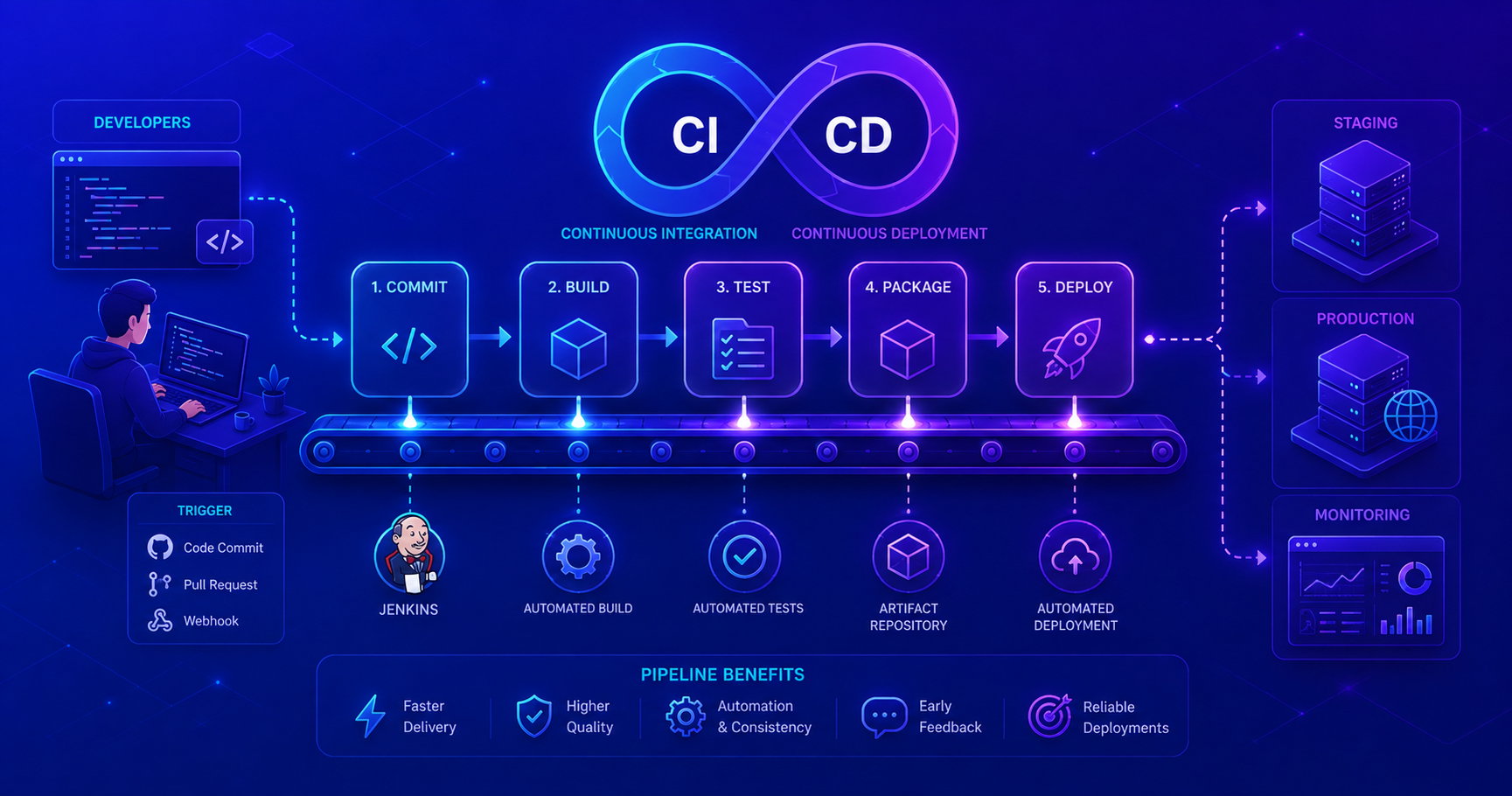
This post introduces CI & CD pipelines and deployment automation. These concepts are essential for modern software development, especially when working in teams. We’ll explore how continuous integration and deployment work together to make our development process more efficient and reliable.
What is Continuous Integration and Continuous Deployment?
In traditional software development, developers would work on features for days or weeks, and then integrate their code all at once. This approach often led to integration problems, hidden bugs, and stressful “release days.” Continuous Integration (CI) and Continuous Deployment (CD) transform this workflow into something much more manageable.
Continuous Integration
Automated code merging and testing.
Continuous Integration is the practice of frequently merging code changes into a central repository, where automated builds and tests validate each change. Instead of waiting until the end of a project to integrate code, developers merge their changes multiple times per day. This catches integration issues early and prevents the “integration nightmare” scenario.
Key aspects:
- Frequent code commits (multiple times daily)
- Automated build processes
- Automated test execution
- Fast feedback to developers
- Failure detection within minutes, not days
Continuous Deployment
Automated release to production.
Continuous Deployment (CD) extends CI by automatically releasing validated code to production environments. Once code passes all automated tests in CI, it’s automatically deployed to live systems without manual intervention. This means every successful build could potentially reach users within minutes.
Note: Some teams use Continuous Delivery instead, which automates deployment to staging but requires manual approval for production, a good middle ground if you need more caution.
Why CI & CD Matters for Team Development
Working on software as part of a team brings unique challenges. Without CI & CD, these challenges compound quickly:
| Challenge | Without CI & CD | With CI & CD |
|---|---|---|
| Integration Issues | Found late, after sprint ends | Caught immediately |
| Testing | Manual, inconsistent, time-consuming | Automated, comprehensive, consistent |
| Deployment | Manual, error-prone, takes hours | Automated, reliable, takes minutes |
| Feedback Time | Days or weeks | Minutes |
| Risk Per Release | High (many changes bundled together) | Low (single change at a time) |
| Team Confidence | Low (afraid to deploy) | High (proven automation) |
When you’re working with teammates, code conflicts happen frequently. CI & CD ensures these conflicts are discovered and resolved immediately, not on a stressful Friday afternoon before a release.
Understanding Pipeline Concepts
A CI & CD pipeline is like an assembly line for your software. Each stage performs specific tasks, and only when all stages succeed does the code move forward.
flowchart LR
A["👨💻 Developer<br/>Commits Code"] --> B["🔨 Build Stage<br/>Compile & Package"]
B --> C{Build<br/>Success?}
C -->|No| D["❌ Notify Developer"]
D --> A
C -->|Yes| E["🧪 Test Stage<br/>Unit & Integration Tests"]
E --> F{Tests<br/>Pass?}
F -->|No| D
F -->|Yes| G["📦 Package Stage<br/>Create Artifacts"]
G --> H["🚀 Deploy Stage<br/>Release to Production"]
H --> I["✅ Live in Production"]
style A fill:#e1f5ff
style B fill:#fff3e0
style E fill:#f3e5f5
style G fill:#e8f5e9
style H fill:#fce4ec
style I fill:#c8e6c9
Let’s explore each stage:
1. Build Stage
The build stage takes your source code and compiles it into an executable form. For Java, this means running Maven or Gradle to create a .jar file. For Python, it might mean packaging dependencies.
1
2
3
4
5
6
// Example: What happens during build
public class Application {
    public static void main(String[] args) {
        System.out.println("Build successful - ready for testing!");
    }
}
A failed build stops the pipeline immediately. There’s no point in testing code that doesn’t compile.
2. Test Stage
Once your code builds successfully, automated tests verify its behavior. These include:
- Unit Tests: Test individual methods and classes
- Integration Tests: Test how components work together
- Code Quality Checks: Verify your code follows standards
1
2
3
4
5
6
7
8
// Example: Unit test that runs during test stage
public class CalculatorTest {
    @Test
    public void testAddition() {
        Calculator calc = new Calculator();
        assertEquals(5, calc.add(2, 3));
    }
}
If any test fails, the pipeline stops. This prevents broken code from reaching production.
3. Package Stage
The package stage creates deployable artifacts. These might be Docker containers, WAR files, or executable JAR files, whatever format your deployment stage needs.
4. Deploy Stage
Finally, the deploy stage takes your packaged code and runs it in an environment where users can access it. This might be a cloud platform, a server, or a Kubernetes cluster.
Jenkins Overview and Pipeline Workflows
Jenkins is one of the most popular open-source CI & CD tools. It’s been around for years and is trusted by thousands of organizations. Jenkins uses the concept of pipelines to define your entire workflow as code.
Declarative Pipeline Example
Here’s what a simple Jenkins pipeline looks like:
1
2
3
4
5
6
7
8
9
10
11
12
13
14
15
16
17
18
19
20
21
22
23
24
25
26
27
28
29
30
31
32
33
34
35
36
37
38
39
40
41
42
pipeline {
    agent any

    stages {
        stage('Build') {
            steps {
                echo 'Building application...'
                sh 'mvn clean compile'
            }
        }

        stage('Test') {
            steps {
                echo 'Running tests...'
                sh 'mvn test'
            }
        }

        stage('Package') {
            steps {
                echo 'Packaging application...'
                sh 'mvn package'
            }
        }

        stage('Deploy') {
            steps {
                echo 'Deploying to production...'
                sh './deploy.sh'
            }
        }
    }

    post {
        always {
            echo 'Pipeline completed'
        }
        failure {
            echo 'Pipeline failed - notifying team'
        }
    }
}
This Jenkinsfile defines:
- agent any: Run on any available Jenkins agent
- stages: The workflow steps
- steps: What commands to run
- post: Actions to take after pipeline completes
How Jenkins Detects Changes
Jenkins typically monitors your Git repository. When it detects a new commit:
sequenceDiagram
    Developer->>Git Repository: Push code
    Jenkins->>Git Repository: Poll for changes
    Git Repository-->>Jenkins: New commits found
    Jenkins->>Jenkins: Trigger pipeline
    Jenkins->>Build Agent: Execute build stage
    Build Agent-->>Jenkins: Build complete
    Jenkins->>Test Agent: Execute test stage
    Test Agent-->>Jenkins: All tests pass
    Jenkins->>Deployment: Execute deploy stage
    Deployment-->>Jenkins: Deployed successfully
    Jenkins->>Developer: ✅ Success notification
Manual vs. Automated Deployment
Let’s visualize the time and risk difference between manual and automated deployments:
timeline
    title Manual Deployment Process
    2 hours: Prepare release notes
    1 hour: Coordinate with team
    30 min: Create backup
    2 hours: Manual upload to servers
    1 hour: Manual testing in production
    1 hour: Fix issues discovered
    Total: 7.5 hours, 15% chance of issues
timeline
    title Automated CI & CD Deployment
    5 min: Code committed
    3 min: Build process
    4 min: Test execution
    2 min: Package artifact
    2 min: Automated deployment
    Total: 16 minutes, 0.5% chance of issues
The benefits are clear:
- ✅ 40x faster deployment
- ✅ 30x fewer errors
- ✅ Deploy multiple times daily instead of monthly
- ✅ Instant rollback if problems occur
Key Benefits of CI & CD
1. Faster Feedback
With CI & CD, you get feedback on your code within minutes. Broken code, performance issues, or failing tests are caught immediately, while the code is still fresh in your mind.
2. Automated Testing
Every change is automatically tested against thousands of test cases. This is impossible to do manually and provides confidence that your code works correctly.
3. Reduced Manual Errors
Deployments are automated and follow the exact same process every time. No more “I forgot to copy this file” or “I ran the wrong script.”
4. Enables Safe, Frequent Releases
When deployment is reliable and fast, teams can release multiple times per day. This means:
- Bugs are fixed faster
- New features reach users quickly
- Risk per release is low
5. Improved Team Communication
CI & CD pipelines provide clear visibility into what’s working and what’s broken. Teams can see deployment history and quickly identify issues.
6. Confidence and Reliability
When you trust your deployment process, developers are brave. They’re willing to refactor, improve, and innovate because they know their changes will be automatically tested and safely deployed.
Setting Up Your First Pipeline
When you’re starting with CI & CD, keep these principles in mind:
Start Simple
Don’t over-engineer.
Your first pipeline doesn’t need to be perfect. Start with basic stages: build, test, deploy. Add sophisticated features like performance testing, security scanning, and approval gates later as your team matures.
Make Tests Fast
You’ll run them constantly.
If your tests take 30 minutes, developers will avoid committing frequently. Optimize test suites to run in 5-10 minutes. Use unit tests as your primary fast feedback mechanism.
Commit Frequently
Multiple times per day.
Small, frequent commits are the foundation of CI & CD. When you commit often, integration issues are caught immediately. Aim for at least one commit per feature, not one commit per week.
Keep Builds Reproducible
Same input = Same output.
Your builds should produce identical results every time they run. This means hard-coding dependencies, avoiding environment-specific scripts, and using version-locked packages.
Common Pipeline Stages in Real Projects
While we’ve focused on build, test, package, and deploy, real-world pipelines often include additional stages:
1
2
3
4
5
6
7
8
9
10
11
12
13
14
15
16
17
18
19
20
21
22
23
24
25
26
27
28
29
30
31
32
33
34
35
36
37
38
39
40
41
42
43
44
45
46
47
48
49
50
51
52
53
54
55
56
57
58
59
60
// More complete pipeline example
pipeline {
    agent any

    stages {
        stage('Build') {
            steps {
                sh 'mvn clean compile'
            }
        }

        stage('Unit Tests') {
            steps {
                sh 'mvn test'
            }
        }

        stage('Code Quality') {
            steps {
                sh 'mvn sonar:sonar'  // SonarQube analysis
            }
        }

        stage('Security Scan') {
            steps {
                sh 'mvn dependency-check:check'  // Check for vulnerabilities
            }
        }

        stage('Integration Tests') {
            steps {
                sh 'mvn verify'
            }
        }

        stage('Package') {
            steps {
                sh 'mvn package'
            }
        }

        stage('Deploy to Staging') {
            steps {
                sh './deploy-staging.sh'
            }
        }

        stage('Smoke Tests') {
            steps {
                sh './smoke-tests.sh'  // Quick tests in staging
            }
        }

        stage('Deploy to Production') {
            steps {
                sh './deploy-production.sh'
            }
        }
    }
}
What’s Next?
Now that you understand CI & CD fundamentals, you’re ready to:
- Set up Jenkins or another CI & CD tool in your organization
- Write your first Jenkinsfile for your project
- Explore advanced topics like Docker integration, Kubernetes deployment, and GitOps
- Learn about deployment strategies like blue-green deployments and canary releases
Key Takeaways
- Continuous Integration means frequently merging code and running automated tests
- Continuous Deployment means automatically releasing tested code to production
- CI & CD pipelines automate the build, test, and deployment process
- Jenkins is a popular tool for building CI & CD pipelines
- Benefits include: faster feedback, automated testing, reliable deployments, and team confidence
- Start simple with basic stages and improve incrementally
Remember: CI & CD isn’t just about tools, it’s a mindset of automating everything repetitive and making feedback instant. When you master these concepts, you’ll be able to deploy code confidently, work effectively in teams, and build systems that your organization can rely on.