
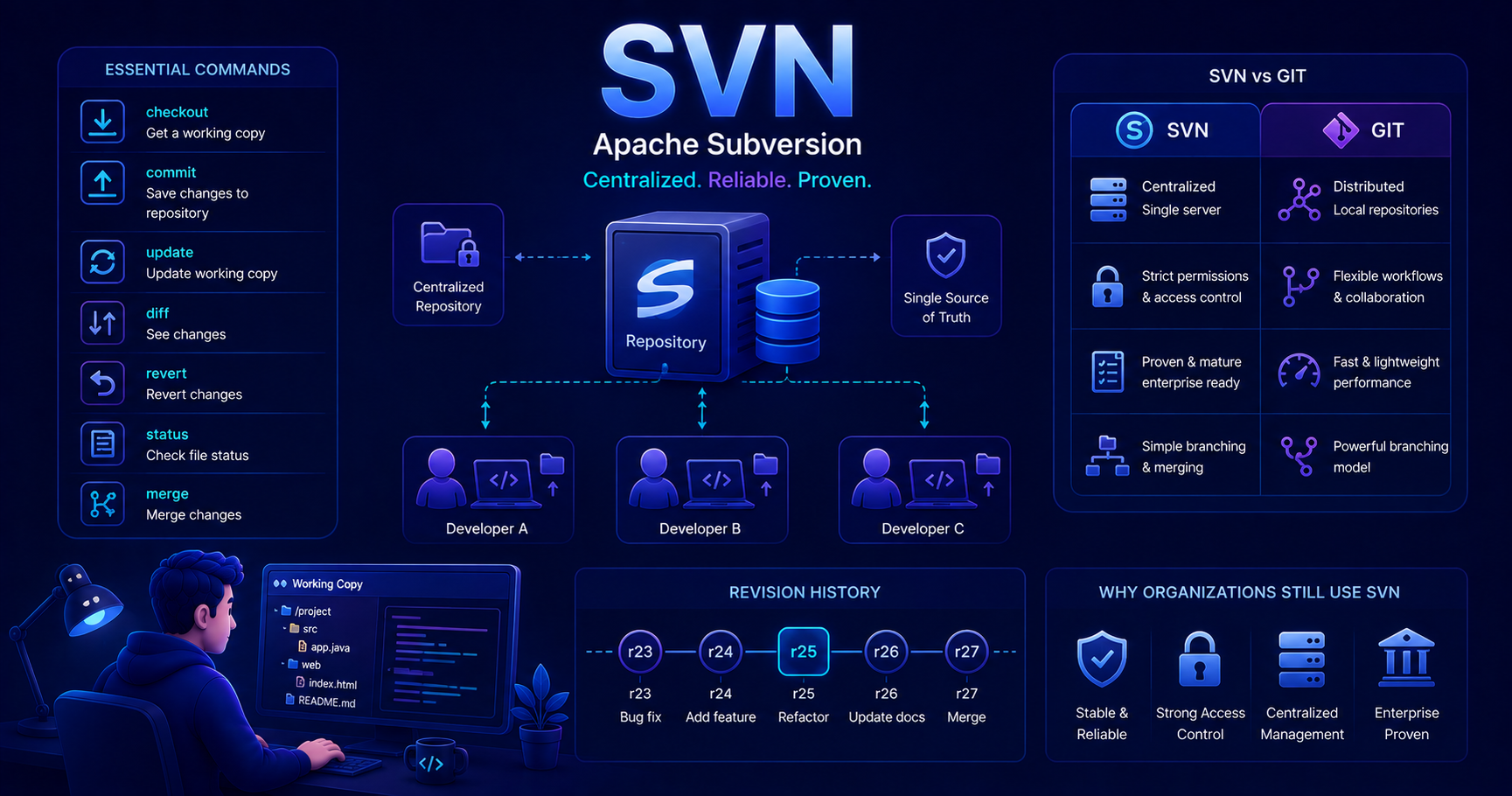
This post introduces Apache Subversion (SVN). If you’re familiar with GIT, check out our post on GIT Version Control to understand the distributed approach first!
What Is SVN and Why Does It Still Matter?
In the world of version control, Apache Subversion (SVN) is the elder statesman. While GIT dominates modern development, SVN remains actively used in many organizations, particularly those with long-established codebases or specific workflow requirements.
SVN is a centralized version control system (CVCS) that manages changes to files and directories over time. Released in 2000 as a replacement for CVS, SVN follows a different philosophy than distributed systems like GIT, all history lives in a single central repository.
Why Learn SVN in 2026?
You might wonder: “Why learn SVN when GIT is everywhere?” Here are compelling reasons:
- Legacy Systems: Many organizations maintain critical systems under SVN
- Enterprise Adoption: Large corporations with established SVN infrastructure aren’t migrating quickly
- Simpler Mental Model: The centralized approach is easier for some teams to understand
- Better Binary Handling: SVN historically handled large binary files more efficiently
- Career Flexibility: Understanding both systems makes you more valuable to employers
Pro Tip: Knowing both SVN and GIT demonstrates adaptability and broadens your job opportunities, especially in enterprise environments!
SVN vs GIT: Understanding the Key Differences
The fundamental difference between SVN and GIT lies in their architecture: centralized vs distributed.
Architecture Comparison
flowchart TB
    subgraph SVN["SVN: Centralized"]
        direction TB
        Central[(Central Repository)]
        Dev1[Developer 1<br/>Working Copy]
        Dev2[Developer 2<br/>Working Copy]
        Dev3[Developer 3<br/>Working Copy]

        Dev1 <-->|checkout/commit| Central
        Dev2 <-->|checkout/commit| Central
        Dev3 <-->|checkout/commit| Central
    end

    subgraph GIT["GIT: Distributed"]
        direction TB
        Remote[(Remote Repository)]
        Local1[(Local Repo 1)]
        Local2[(Local Repo 2)]
        Local3[(Local Repo 3)]

        Local1 <-->|push/pull| Remote
        Local2 <-->|push/pull| Remote
        Local3 <-->|push/pull| Remote
        Local1 -.->|can share directly| Local2
    end
Feature Comparison Table
| Feature | SVN (Centralized) | GIT (Distributed) |
|---|---|---|
| Repository Location | Single central server | Every developer has full copy |
| Offline Work | Limited (read-only) | Full functionality offline |
| Commit Model | Directly to central repo | Local commit, then push |
| Revision Numbering | Sequential (r1, r2, r3…) | SHA-1 hashes |
| Branching | Directory-based, slower | Pointer-based, instant |
| Merging | Can be complex | More sophisticated |
| Storage | Stores differences | Stores complete snapshots |
| Binary Files | Handles well | Can bloat repo size |
| Learning Curve | Gentler for beginners | Steeper initially |
| Network Dependency | High (most operations) | Low (only push/pull) |
| Single Source of Truth | Always (the central repo) | By convention (remote repo) |
Why Centralized Can Be Simpler
Understanding SVN’s straightforward model.
SVN’s centralized model has conceptual advantages:
- Single Source of Truth: Everyone commits to the same repository, eliminating confusion
- Linear History: Sequential revision numbers (r1234) are easier to reference than GIT hashes
- Simpler Workflow: Fewer commands to learn initially (no push/pull/remote concepts)
- Easier Access Control: Permissions managed in one place on the server
- No Sync Confusion: No “my repo vs their repo” issues
However, this simplicity comes with trade-offs like network dependency and limited offline capabilities.
Core SVN Concepts
Repository Structure
SVN repositories typically follow a conventional directory structure:
flowchart TB
    Repo["SVN Repository"]
    Repo --> Trunk["trunk/<br/>Main development line"]
    Repo --> Branches["branches/<br/>Feature/release branches"]
    Repo --> Tags["tags/<br/>Release snapshots"]

    Branches --> Feature1["feature-login/"]
    Branches --> Feature2["release-2.0/"]

    Tags --> V10["v1.0.0/"]
    Tags --> V11["v1.1.0/"]

    style Trunk fill:#90EE90
    style Branches fill:#87CEEB
    style Tags fill:#FFD700
Trunk, Branches, and Tags
SVN’s organizational convention.
Unlike GIT where branches are pointers, SVN uses directories:
- trunk/: The main development line (equivalent to GIT’s
mainormasterbranch) - branches/: Directory containing feature branches, release branches, etc.
- tags/: Immutable snapshots of releases (like GIT tags, but as directories)
This is a convention, not a requirement, SVN doesn’t enforce it, but nearly everyone follows it.
Example Structure:
1
2
3
4
5
6
7
8
9
10
/myproject
  /trunk
    /src
    /tests
  /branches
    /feature-authentication
    /release-2.0
  /tags
    /v1.0.0
    /v1.1.0
Revision Numbers
Every commit in SVN receives a sequential revision number (r1, r2, r3…). This number applies to the entire repository, not individual files.
- r100: Refers to the state of the entire repository at revision 100
- file.java@r100: Refers to file.java as it existed at revision 100
Working Copy
Your working copy is a local checkout of the repository. Unlike GIT, you only have the current version plus SVN metadata, not the full history.
Essential SVN Commands
Let’s explore the commands you’ll use daily when working with SVN.
Getting Started: Checking Out a Repository
To start working with an SVN repository, you “check out” a working copy:
1
2
3
4
5
6
# Checkout the trunk
svn checkout http://svn.example.com/myproject/trunk myproject
cd myproject

# Or use short form
svn co http://svn.example.com/myproject/trunk myproject
This downloads the latest version of the code to your local machine.
Warning: Unlike
git clone, SVN checkout doesn’t give you the full history, only the current version and metadata!
Checking Status and Updates
1
2
3
4
5
6
7
8
9
10
11
12
13
14
15
16
# Check which files you've modified
svn status
# Output shows:
# M    modified file
# A    added file
# D    deleted file
# ?    untracked file
# !    missing file

# See detailed status
svn status -v

# Check if repository has updates
svn status -u
# Shows:
# *    file has updates on server
Updating Your Working Copy
1
2
3
4
5
6
7
8
# Update to latest revision
svn update

# Update to specific revision
svn update -r 1234

# Update specific file
svn update src/Main.java
Pro Tip: Always run
svn updatebefore starting work to avoid conflicts!
Making Changes: The Basic Workflow
1
2
3
4
5
6
7
8
9
10
11
12
13
14
15
16
17
18
# 1. Update your working copy
svn update

# 2. Make changes to files
vim src/UserService.java

# 3. Add new files (if any)
svn add src/NewFeature.java

# 4. Check what you've changed
svn status
svn diff

# 5. Commit your changes
svn commit -m "Add user authentication feature"

# Or commit specific files
svn commit src/UserService.java src/NewFeature.java -m "Add authentication"
Viewing History and Differences
1
2
3
4
5
6
7
8
9
10
11
12
13
14
15
16
# View commit history
svn log

# View last 5 commits
svn log -l 5

# View history of specific file
svn log src/Main.java

# See detailed changes in a commit
svn log -v -r 1234

# View differences
svn diff                    # Uncommitted changes
svn diff -r 1233:1234      # Between two revisions
svn diff -r 1233 Main.java # Specific file at revision
Reverting Changes
1
2
3
4
5
6
7
8
9
# Revert local changes to a file
svn revert src/Main.java

# Revert all local changes
svn revert -R .

# Revert to specific revision (creates new commit)
svn merge -r HEAD:1234 .
svn commit -m "Revert to r1234"
Resolving Conflicts
What happens when changes collide.
When you svn update and your changes conflict with someone else’s:
1
2
3
4
5
6
7
8
9
# SVN marks conflict
svn update
# Output: C    src/Main.java

# SVN creates several files:
# Main.java            - Your working copy with conflict markers
# Main.java.mine       - Your version
# Main.java.r1233      - Base version
# Main.java.r1234      - Their version
Resolution Options:
1
2
3
4
5
6
7
8
9
10
11
12
# 1. Accept theirs (discard your changes)
svn resolve --accept theirs-full src/Main.java

# 2. Accept yours (override their changes)
svn resolve --accept mine-full src/Main.java

# 3. Edit manually, then mark resolved
vim src/Main.java  # Remove conflict markers
svn resolve --accept working src/Main.java

# 4. See all options
svn resolve --help
Always test after resolving conflicts!
Working with Branches
Branching in SVN is conceptually different from GIT, it’s done by copying directories.
Creating a Branch
1
2
3
4
5
6
7
8
9
10
11
# Create branch from trunk (server-side copy)
svn copy http://svn.example.com/myproject/trunk \
         http://svn.example.com/myproject/branches/feature-login \
         -m "Create feature branch for login system"

# Checkout the branch
svn checkout http://svn.example.com/myproject/branches/feature-login

# Or branch from local working copy
cd myproject/trunk
svn copy . ../branches/feature-login -m "Create feature branch"
Switching Between Branches
1
2
3
4
5
# Switch your working copy to different branch
svn switch http://svn.example.com/myproject/branches/feature-login

# Switch back to trunk
svn switch http://svn.example.com/myproject/trunk
Warning: Unlike GIT checkout,
svn switchmodifies your current directory, make sure you’ve committed or reverted changes first!
Merging Branches
Merging in SVN requires tracking what’s been merged manually (in older versions) or using SVN’s merge tracking (SVN 1.5+).
sequenceDiagram
    participant T as Trunk
    participant B as Branch

    Note over T: r100: Initial state
    T->>B: r101: Create branch
    Note over B: r102: Work on feature
    Note over B: r103: More feature work
    Note over T: r104: Unrelated change
    Note over B: r105: Complete feature
    B->>T: r106: Merge branch to trunk
    Note over T: r106: Feature integrated
Merging a Branch Back to Trunk
1
2
3
4
5
6
7
8
9
10
11
12
13
14
15
16
17
18
19
20
21
# 1. Switch to trunk
cd myproject
svn switch http://svn.example.com/myproject/trunk

# 2. Update to latest
svn update

# 3. Merge entire branch
svn merge http://svn.example.com/myproject/branches/feature-login

# 4. Review changes
svn status
svn diff

# 5. Resolve any conflicts
svn resolve --accept working conflicted-file.java

# 6. Test thoroughly!

# 7. Commit the merge
svn commit -m "Merge feature-login branch to trunk"
Syncing Branch with Trunk Changes
1
2
3
4
5
6
7
8
9
# While working on branch, pull in trunk changes
cd myproject/branches/feature-login
svn update

# Merge trunk changes into branch
svn merge http://svn.example.com/myproject/trunk

# Resolve conflicts, test, commit
svn commit -m "Sync with trunk changes"
Reintegrate Merge
Special merge for completed branches.
When merging a long-lived branch that’s been syncing with trunk:
1
2
3
4
5
6
7
8
9
# From trunk working copy
cd myproject/trunk
svn update

# Use reintegrate option
svn merge --reintegrate http://svn.example.com/myproject/branches/feature-login

# Commit
svn commit -m "Reintegrate feature-login branch"
After reintegration, the branch should be deleted or no longer synced with trunk. If continuing work, create a new branch.
Creating Tags for Releases
Tags in SVN are just copies placed in the tags/ directory, they’re immutable by convention, not enforcement.
1
2
3
4
5
6
7
8
9
# Create a release tag
svn copy http://svn.example.com/myproject/trunk \
         http://svn.example.com/myproject/tags/v1.2.0 \
         -m "Tag release version 1.2.0"

# Or from local working copy at specific revision
svn copy -r 1500 http://svn.example.com/myproject/trunk \
                 http://svn.example.com/myproject/tags/v1.2.0 \
                 -m "Tag release version 1.2.0"
Pro Tip: Never commit to tags! They represent immutable snapshots of releases. If you need to fix a release, create a maintenance branch instead.
SVN Best Practices
Commit Often, Commit Smart
1
2
3
4
5
6
7
8
# Good commit message
svn commit -m "Fix null pointer exception in UserService.authenticate()

Added null check before accessing user.email field.
Fixes bug #1234"

# Bad commit message
svn commit -m "fix bug"
Update Before Commit
1
2
3
4
# Always update first to minimize conflicts
svn update
# Make changes
svn commit -m "Your changes"
Use Properties for Metadata
1
2
3
4
5
6
7
8
9
10
11
# Set executable property
svn propset svn:executable ON build.sh

# Set ignore patterns
svn propset svn:ignore "*.class" bin/

# Set EOL style (line endings)
svn propset svn:eol-style native src/*.java

# View properties
svn proplist -v src/Main.java
Lock Binary Files
For files that can’t be merged (images, Word docs):
1
2
3
4
5
6
7
8
# Get lock before editing
svn lock design.psd -m "Updating company logo"

# Make changes, commit (automatically releases lock)
svn commit -m "Update logo"

# Or manually release lock
svn unlock design.psd
When Organizations Still Use SVN
Despite GIT’s popularity, SVN remains relevant in specific scenarios:
Enterprise Legacy Systems
Many large organizations have decades of history in SVN repositories. The cost and risk of migrating massive codebases can outweigh the benefits.
"We manage a 15-year-old financial system with over 2 million lines of code in SVN. The repository works perfectly, our team knows it well, and migration would risk our audit trail. Until we rebuild the system, SVN stays." - Senior developer at a financial institution
Simplified Access Control
SVN’s centralized model allows granular path-based permissions:
1
2
3
4
5
6
7
8
9
10
# SVN authz file
[/]
* = r

[/trunk/core]
@core-team = rw

[/trunk/sensitive]
@security-team = rw
alice = r
This is simpler to manage than distributed GIT permissions for some organizations.
Large Binary Assets
Game development and media companies often prefer SVN for handling large binary files (textures, 3D models, videos) because:
- Better built-in handling of large files
- Cheaper operations (only download what you need)
- GIT LFS adds complexity
Compliance and Auditing
Regulated industries value SVN’s centralized audit trail:
- Single source of truth for compliance
- Simpler to demonstrate “who changed what when”
- Centralized backup and retention policies
Existing Tooling Integration
Organizations with mature toolchains built around SVN face high switching costs:
- CI/CD pipelines configured for SVN
- Code review tools integrated with SVN
- Build systems expecting SVN revision numbers
- Documentation referencing SVN workflows
Migrating from SVN to GIT
If your organization is considering migration, here’s what you need to know:
Migration Tools
1
2
3
4
5
6
7
8
9
10
# Using git-svn (preserves history)
git svn clone http://svn.example.com/myproject/trunk myproject
cd myproject

# Convert SVN branches
git svn clone --stdlayout http://svn.example.com/myproject

# Using svn2git (better branch/tag handling)
gem install svn2git
svn2git http://svn.example.com/myproject
Migration Considerations
What to Plan Before Migration
Critical migration factors.
Technical Considerations:
- Map SVN users to GIT authors
- Convert
svn:ignoreto.gitignore - Handle SVN properties (externals, locks)
- Convert SVN tags to GIT tags
- Test branch conversion thoroughly
Organizational Considerations:
- Train team on GIT workflows
- Update CI/CD pipelines
- Revise documentation and wikis
- Choose hosting (GitHub, GitLab, Bitbucket)
- Plan transition period (dual operation?)
History Considerations:
- Do you need complete history or fresh start?
- How to handle large binary files?
- Archive old SVN repository for compliance?
Post-Migration Workflow Changes
1
2
3
4
5
6
7
8
9
10
11
# SVN workflow
svn update            # Get latest
# make changes
svn commit           # Push to server

# Equivalent GIT workflow
git pull             # Get latest
# make changes
git add .
git commit           # Save locally
git push             # Push to server
Info: The biggest mental shift is understanding local commits vs remote pushes, GIT separates these operations while SVN combines them.
Comparing Workflows: SVN vs GIT
Feature Development Workflow
flowchart TB
    subgraph SVN["SVN Workflow"]
        direction TB
        S1[svn update] --> S2[Create branch<br/>svn copy]
        S2 --> S3[svn switch to branch]
        S3 --> S4[Make changes]
        S4 --> S5[svn commit<br/>directly to server]
        S5 --> S6{More work?}
        S6 -->|Yes| S4
        S6 -->|No| S7[svn switch to trunk]
        S7 --> S8[svn merge branch]
        S8 --> S9[svn commit merge]
    end

    subgraph GIT["GIT Workflow"]
        direction TB
        G1[git pull] --> G2[Create branch<br/>git checkout -b]
        G2 --> G3[Make changes]
        G3 --> G4[git commit<br/>locally]
        G4 --> G5{More work?}
        G5 -->|Yes| G3
        G5 -->|No| G6[git checkout main]
        G6 --> G7[git merge branch]
        G7 --> G8[git push]
    end
Quick Reference: Common SVN Commands
| Task | SVN Command |
|---|---|
| Get repository | svn checkout URL |
| Update working copy | svn update |
| Check status | svn status |
| View changes | svn diff |
| Add file | svn add FILE |
| Delete file | svn delete FILE |
| Commit changes | svn commit -m "message" |
| View history | svn log |
| Revert changes | svn revert FILE |
| Create branch | svn copy URL1 URL2 -m "msg" |
| Switch branch | svn switch URL |
| Merge | svn merge URL |
| Resolve conflict | svn resolve --accept working FILE |
| View info | svn info |
| Lock file | svn lock FILE |
| Get help | svn help COMMAND |
Conclusion: SVN in Your Developer Toolkit
While GIT dominates modern software development, understanding SVN makes you a more versatile developer. You’ll encounter SVN in:
- Legacy enterprise systems with established workflows
- Organizations with compliance and auditing requirements
- Industries handling large binary assets
- Migration projects transitioning from SVN to GIT
The core concepts you’ve learned, version control, branching, merging, conflict resolution, transfer between systems. Whether you work with SVN, GIT, or both, you’re building foundational skills in managing code collaboratively.
If you’re new to version control in general, understanding SVN’s simpler centralized model can actually help you appreciate why GIT’s distributed approach is powerful. Consider learning both!
Next Steps:
- Practice SVN commands in a test repository
- Read our GIT Version Control post to compare approaches
- If your workplace uses SVN, ask about their specific workflow conventions
- Consider setting up a local SVN server for experimentation
Remember: The best version control system is the one your team uses effectively. Master the tools your organization relies on, and stay adaptable to new ones!